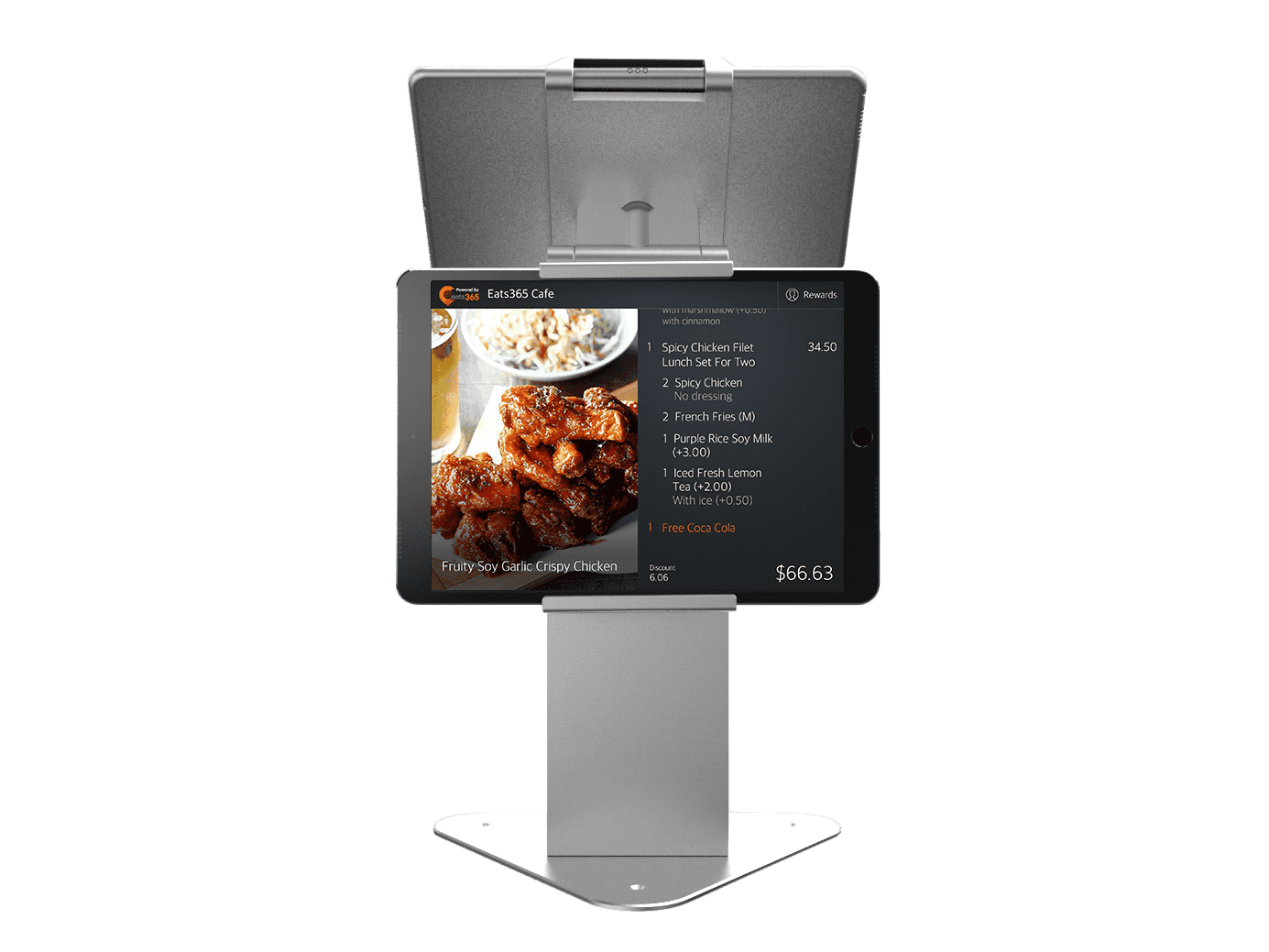
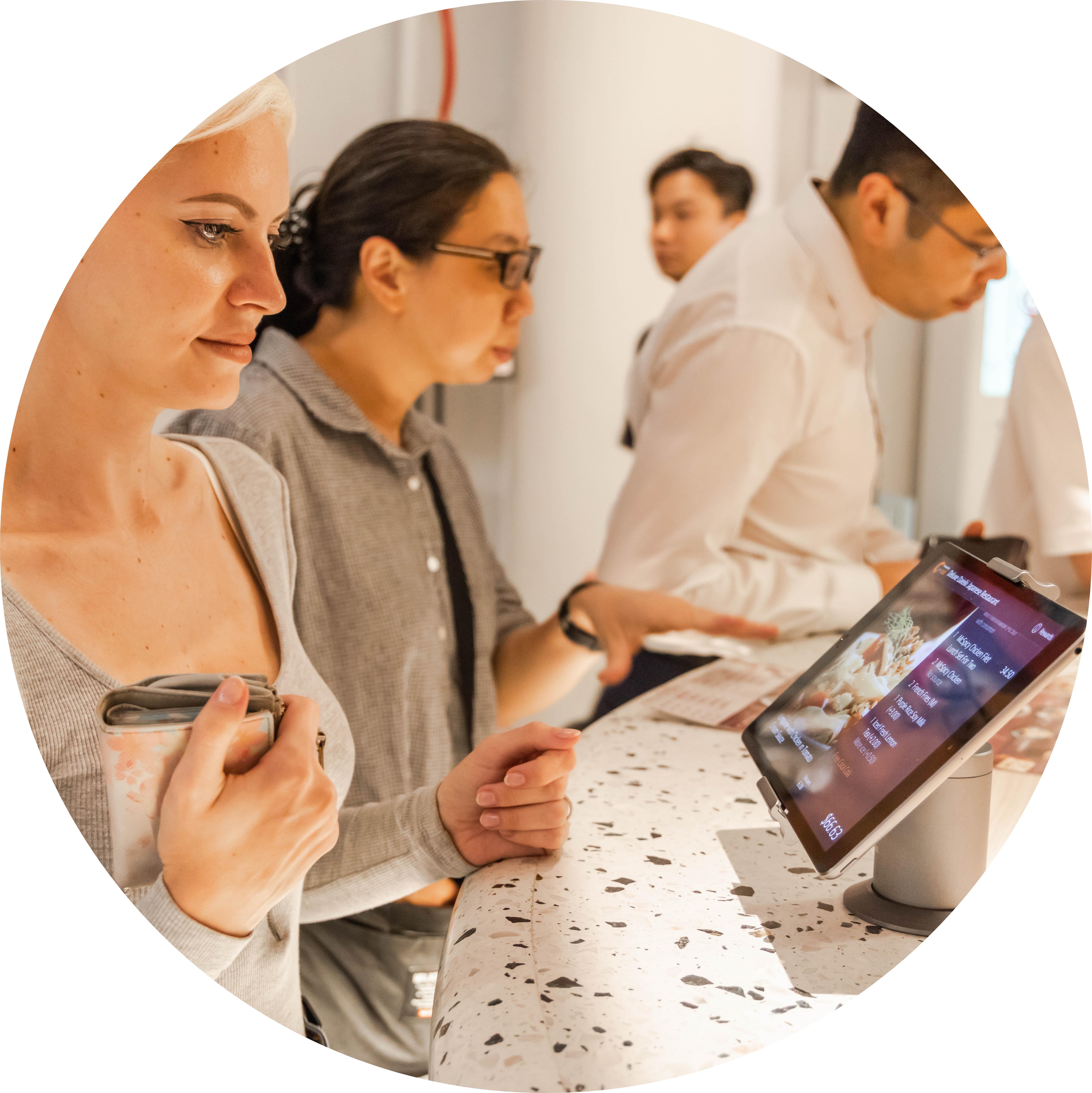
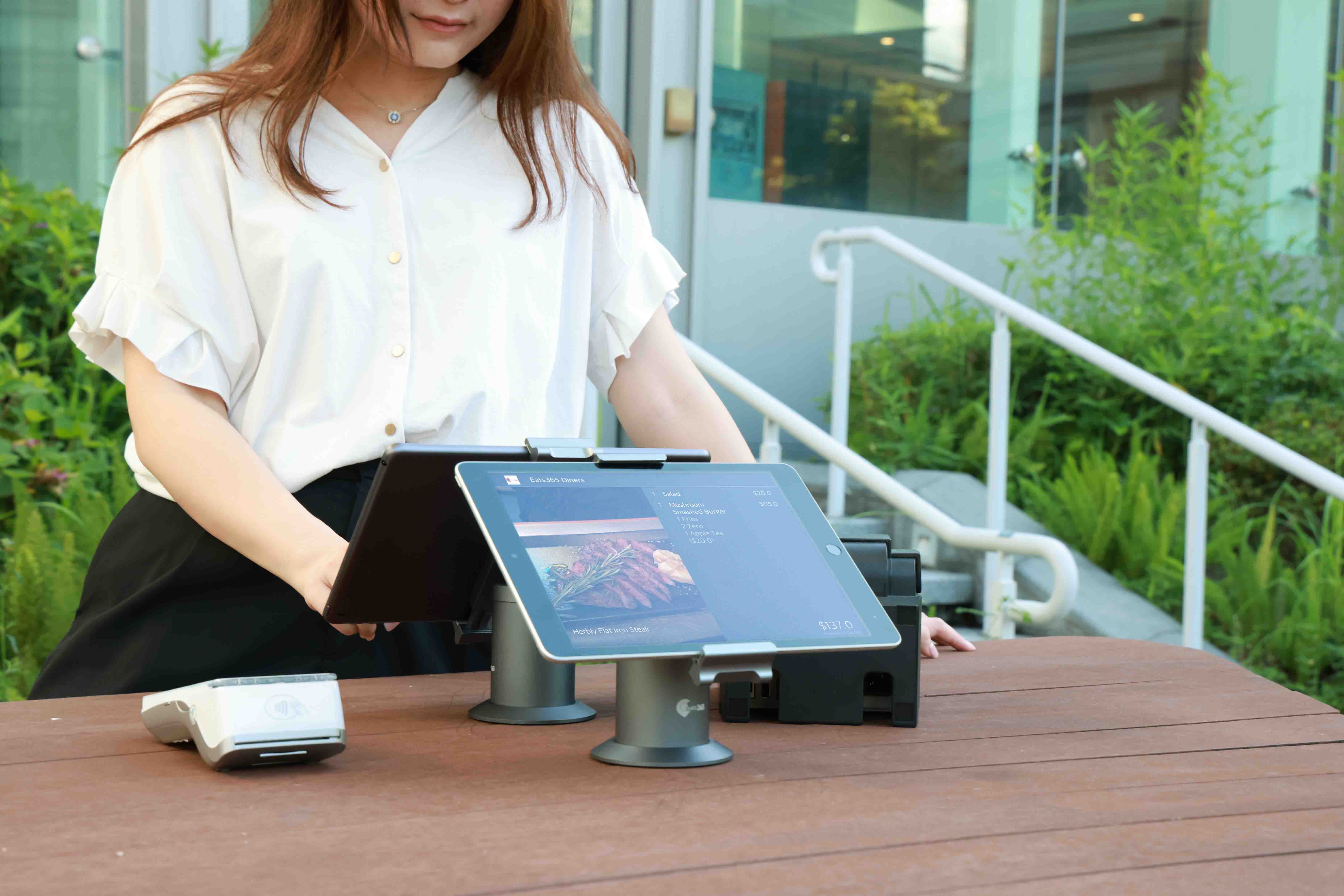
Let guests see each item's price, plus SST and service charge, on a clear screen as they pay. Checking their own bill makes them feel valued — and trust is what brings them back.
Customer-Facing Display
Leave a Positive Lasting Impression Even as Customers Settle Up
By personalizing and modernizing the checkout experience, you show your customers that you care about them. When paired with an Eats365 POS, you can offer vital information on your Customer-Facing Display about each customer’s order that’s sure to leave a positive lasting impression.
How Does a Customer-Facing Display Improve the Guest Experience?
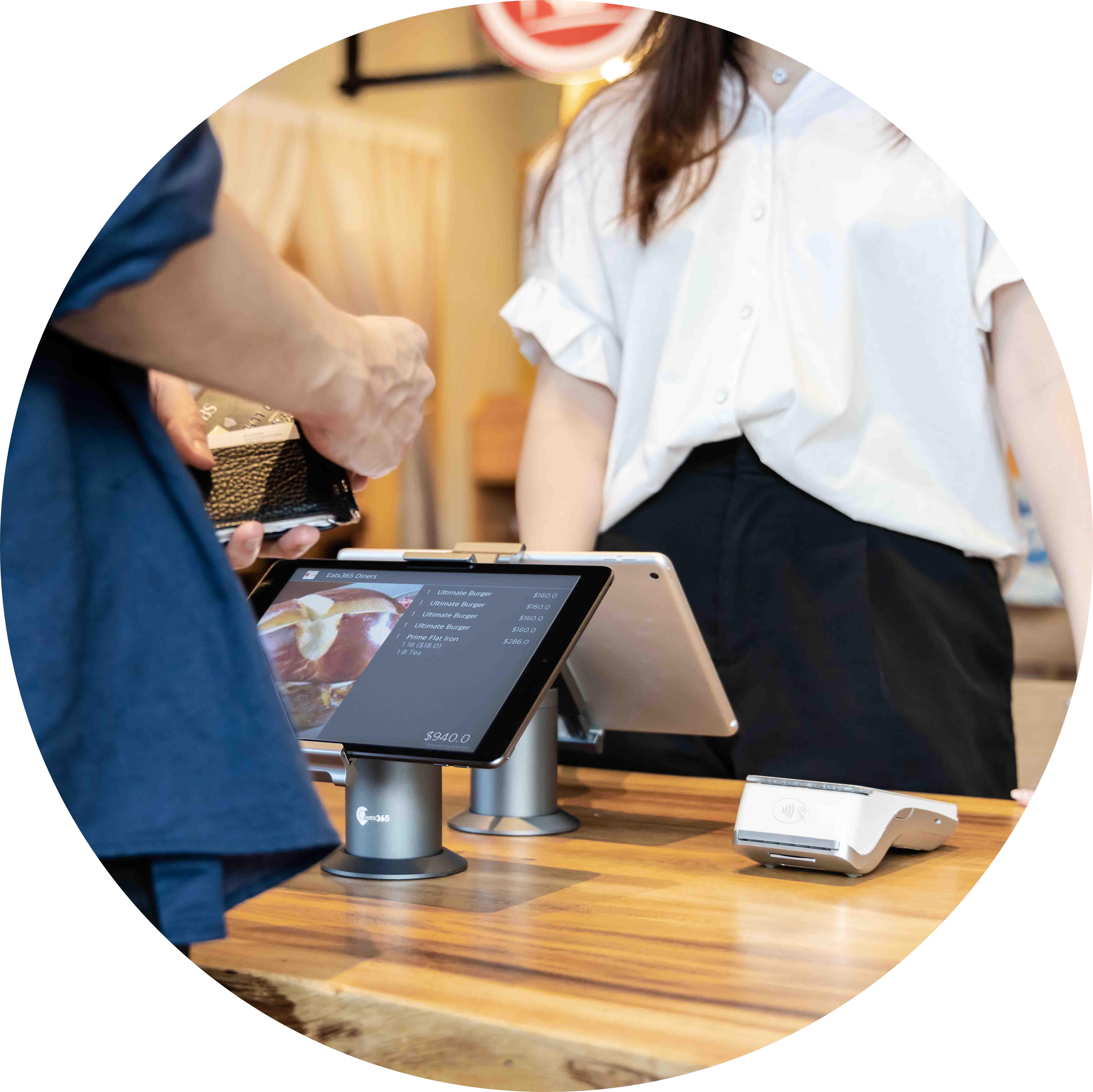
A Personalized Checkout Experience that Builds Trust
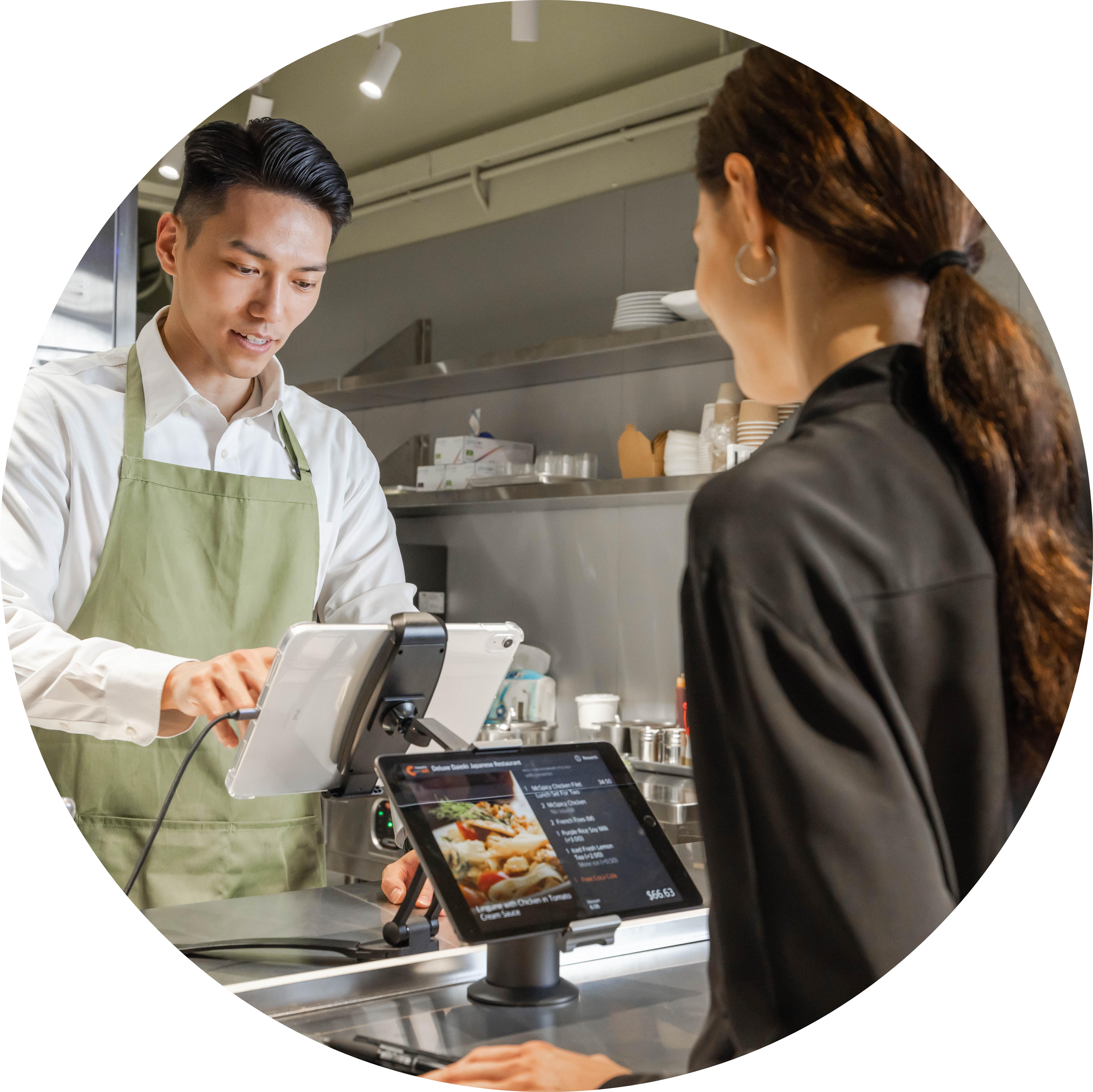
Made a Mistake? Make It Right Instantly!
If a guest spots an error on the display, you fix it on the spot — no angry complaints days later, no digging up old receipts to settle disputes.
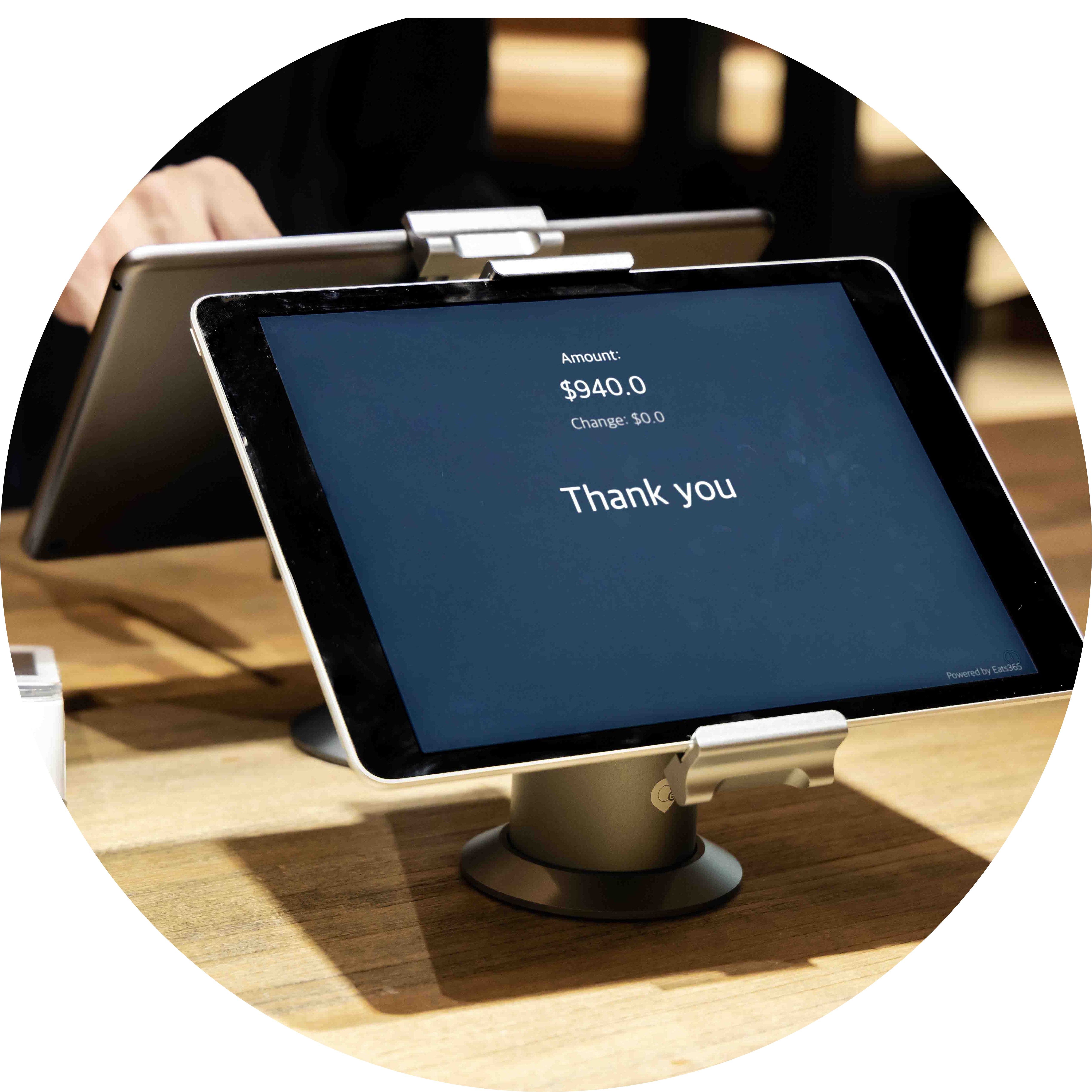
POS and Display, Positioned to Perfection
Whatever your store size, a dual-screen iPad stand points the POS at your cashier and the Customer-Facing Display at the guest — neat, space-efficient, and on-brand.

Use Media to Tempt Customers to Return
Between orders, show photos or videos of new items and promotions on the same screen, turning checkout into one more reason for guests to come back.

Full Order Breakdown Displayed
 Itemised breakdown of every item on the guest's bill
Individual prices plus the total, at a glance
SST and service charge shown clearly for full transparency
Itemised breakdown of every item on the guest's bill
Individual prices plus the total, at a glance
SST and service charge shown clearly for full transparency
Integration Reduces Complication
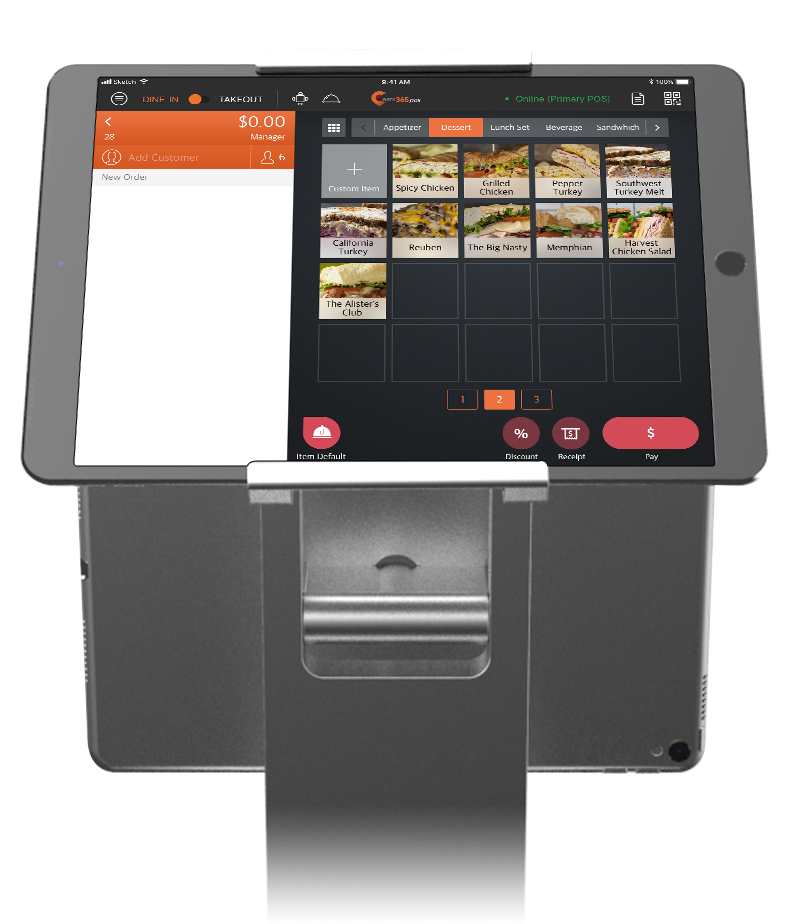
Cloud-connected with your POS and other modules
Orders transfer to the display instantly from the POS
No lag, so checkout stays fast
Show Promotional Media on Screen
Upload image and video media groups to the display
Set the exact order your media plays in
Loop your media or pin a single static image
Full Order Breakdown Displayed
Itemised breakdown of every item on the guest's bill
Individual prices plus the total, at a glance
SST and service charge shown clearly for full transparency
Integration Reduces Complication
Cloud-connected with your POS and other modules
Orders transfer to the display instantly from the POS
No lag, so checkout stays fast
Show Promotional Media on Screen
Upload image and video media groups to the display
Set the exact order your media plays in
Loop your media or pin a single static image
Customer-Facing Display is Perfect for these Restaurant Types


Customer-Facing Display is Part of the Following Solution



Restaurants Like Yours Love the Customer-Facing Display
FAQs about Eats365 Customer-Facing Display
1. What is a Customer-Facing Display (CFD) in a restaurant?
A Customer-Facing Display is a digital screen that provides customers with a real-time view of their order details as they are being entered into the POS. It allows customers to verify itemized pricing, taxes, and surcharges before finalizing their transaction, which helps reduce order errors and build trust.
2. How does the Customer-Facing Display sync with the Eats365 POS?
The Customer-Facing Display is paired directly with the Eats365 POS. As staff add items to an order using the POS interface, the information is automatically updated on the CFD in real time, ensuring the customer sees the most current version of their bill.
3. Can I show advertisements or promotions on the customer screen?
Yes, you can upload media groups, including images and videos, to your Customer-Facing Display. When the system is idle, it can be used to promote new menu items, upcoming deals, or loyalty programs to keep customers engaged while waiting.
4. Does the Eats365 CFD support digital tipping?
Yes, the Customer-Facing Display can be configured to prompt customers for tips during the checkout process. This allows for a more discreet and modernized tipping experience where customers can select from preset percentages or enter a custom amount.
5. How do I set up and pair a Customer-Facing Display?
To set up the CFD, log in to your Eats365 POS terminal, navigate to Settings, and select 'Device Pairing.' From there, select 'Customer Facing Display' to connect the secondary screen to your main POS system.
6. What are the benefits of using a secondary display for customers?
A secondary display improves order accuracy by allowing customers to spot mistakes early, increases transparency regarding taxes and fees, and speeds up the ordering process. Additionally, it serves as a marketing tool to boost brand loyalty through personalized media and promotions.
Your Eats365 Growth Guide
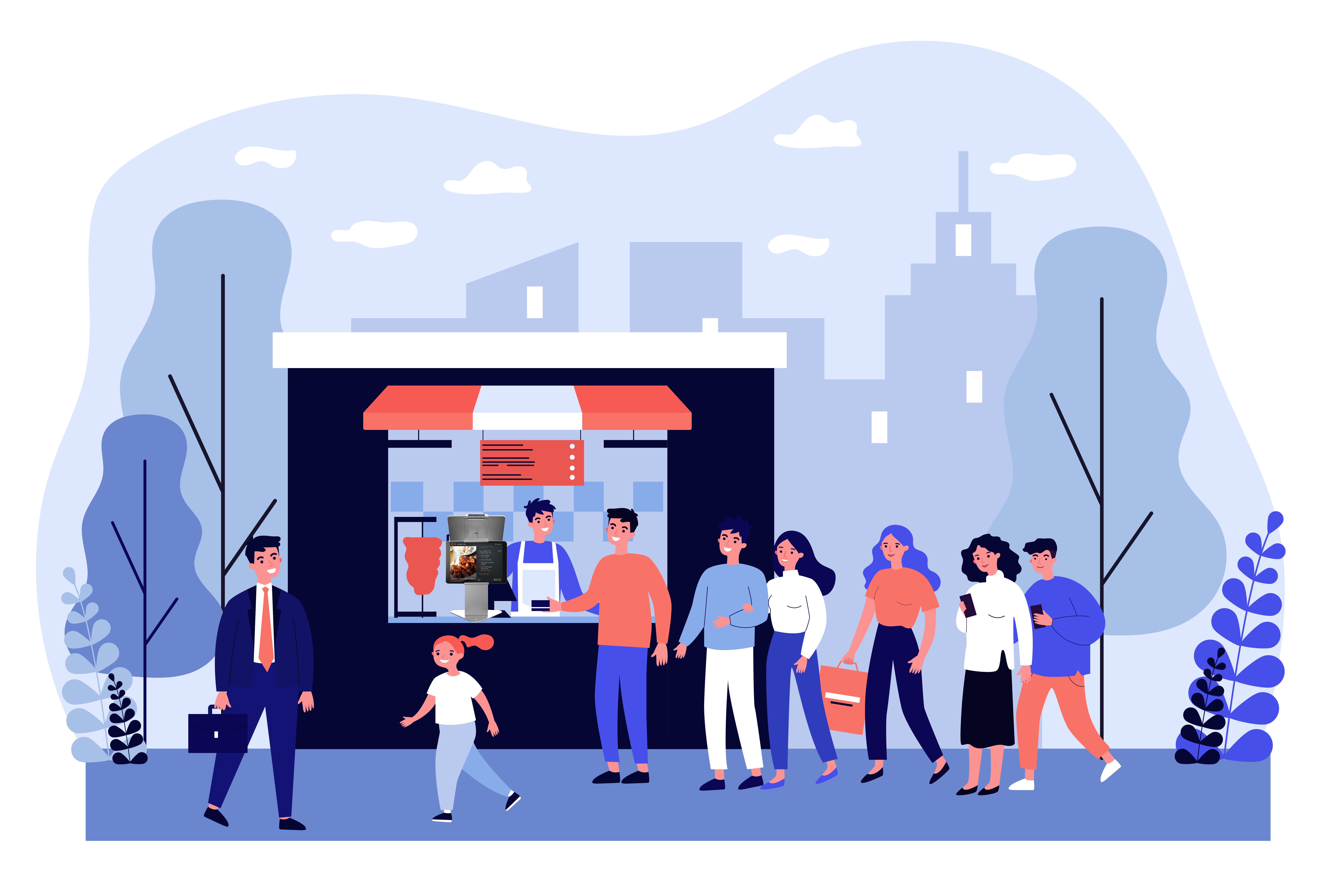
What is Eats365’s Customer Facing Display (CFD) and How can it Benefit Your Restaurant Business?
 09 Mar 2021

Offer customers a superior and personalized checkout experience so your business stands out
Read More
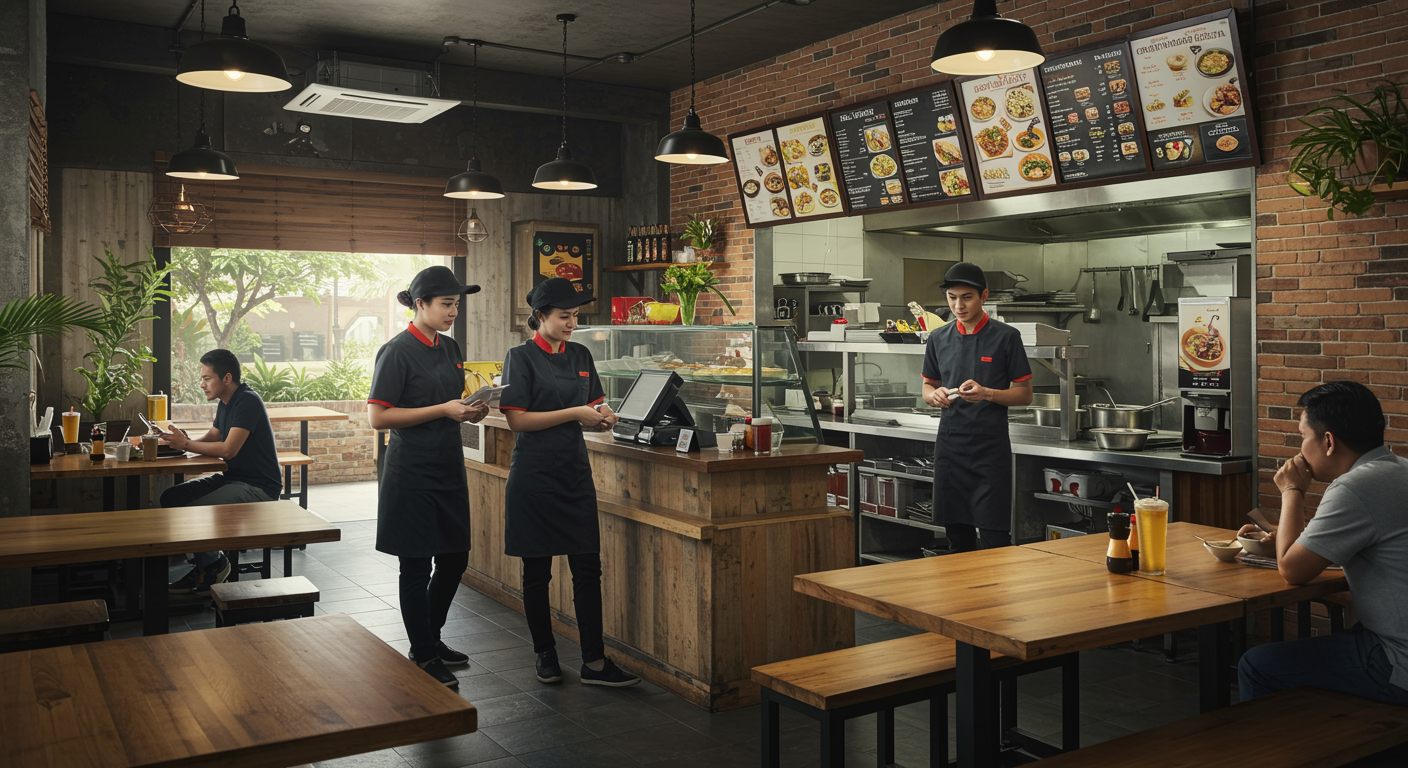
5 Tactics to Maximize Dine-In Revenue for Malaysian Restaurants
07 Jan 2026
Feeling the pinch of fluctuating dine-in revenue amidst Malaysia's changing food scene? This article shares five practical strategies to steady and raise your restaurant's earnings, so every dish served and every table turned helps the bottom line.
Eats365
Restaurant management
Restaurant POS System
Read More

5 Must-Have Restaurant Features to Impress Gen Z Customers in Malaysia
21 Mar 2025
With the rise of food tech and social media, restaurants in Malaysia are at the edge of digital transformation. In this article we'll explore the digital features a restaurants should have to impress the younger generation audiences!
Foodtech
Restaurant POS Features
Read More