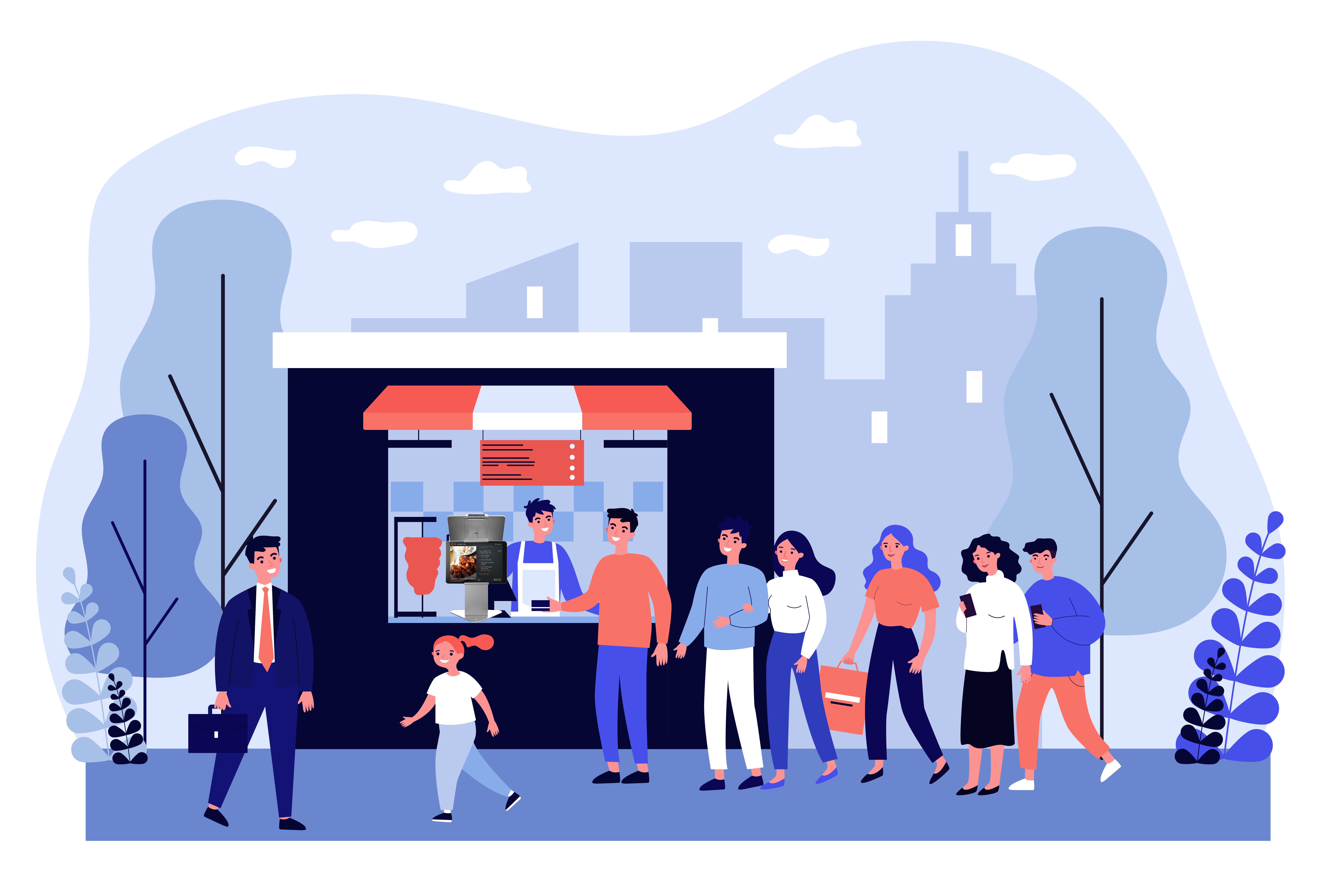
Building trust with the customer, especially at the very end of their journey with your business is a key way to ensure repeat visits. By letting your customer view things like individual item pricing, additional surcharges and taxes on a clear display, they can double-check their spend amount and you can curate a personalized experience that makes them feel valued.
Customer-Facing Display
Leave a Positive Lasting Impression Even as Customers Settle Up
By personalizing and modernizing the checkout experience, you show your customers that you care about them. When paired with an Eats365 POS, you can offer vital information on your Customer-Facing Display about each customer’s order that’s sure to leave a positive lasting impression.
How Can a Customer-Facing Display Help Improve Customer Experience?
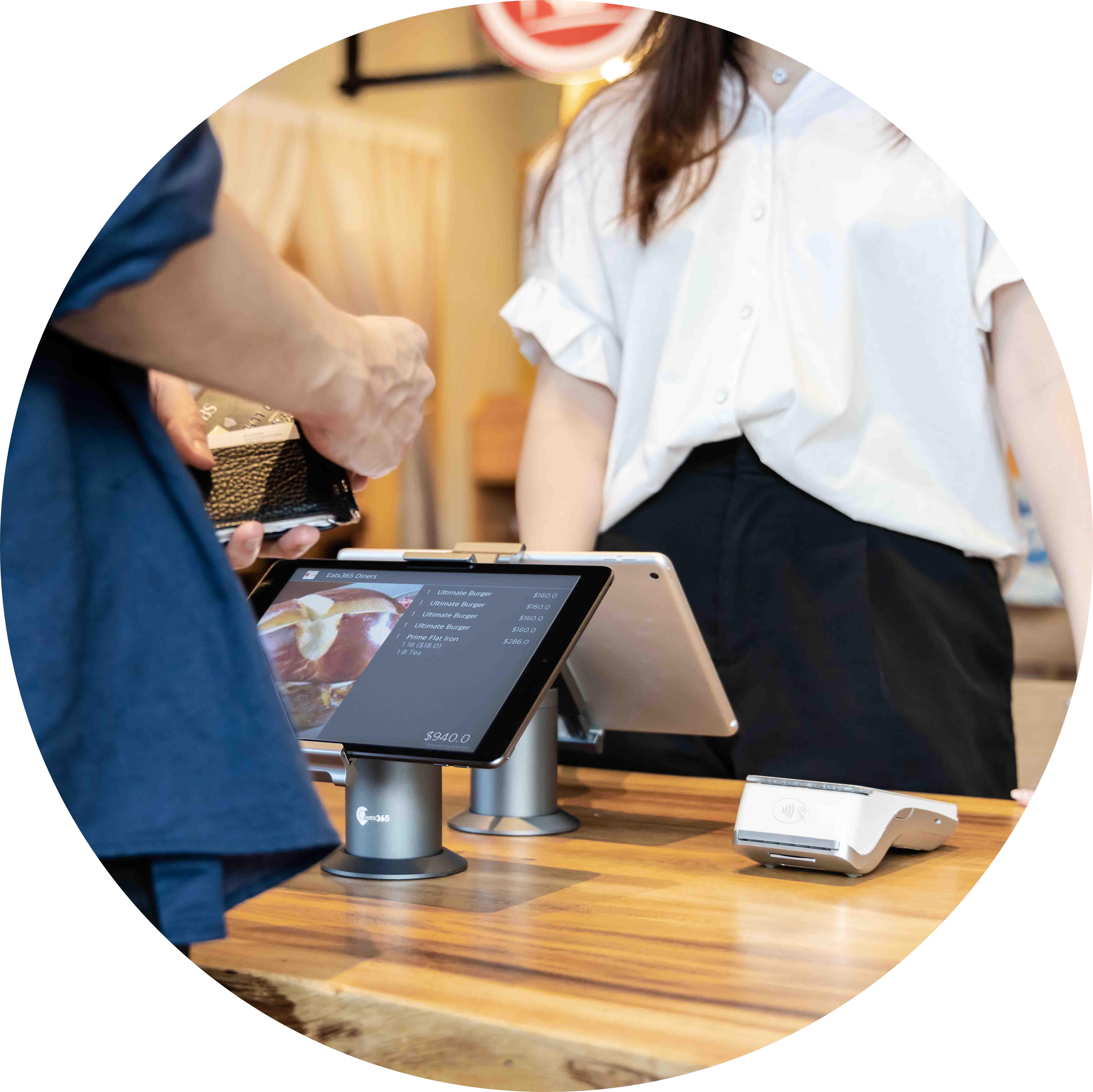
A Personalized Checkout Experience that Builds Trust
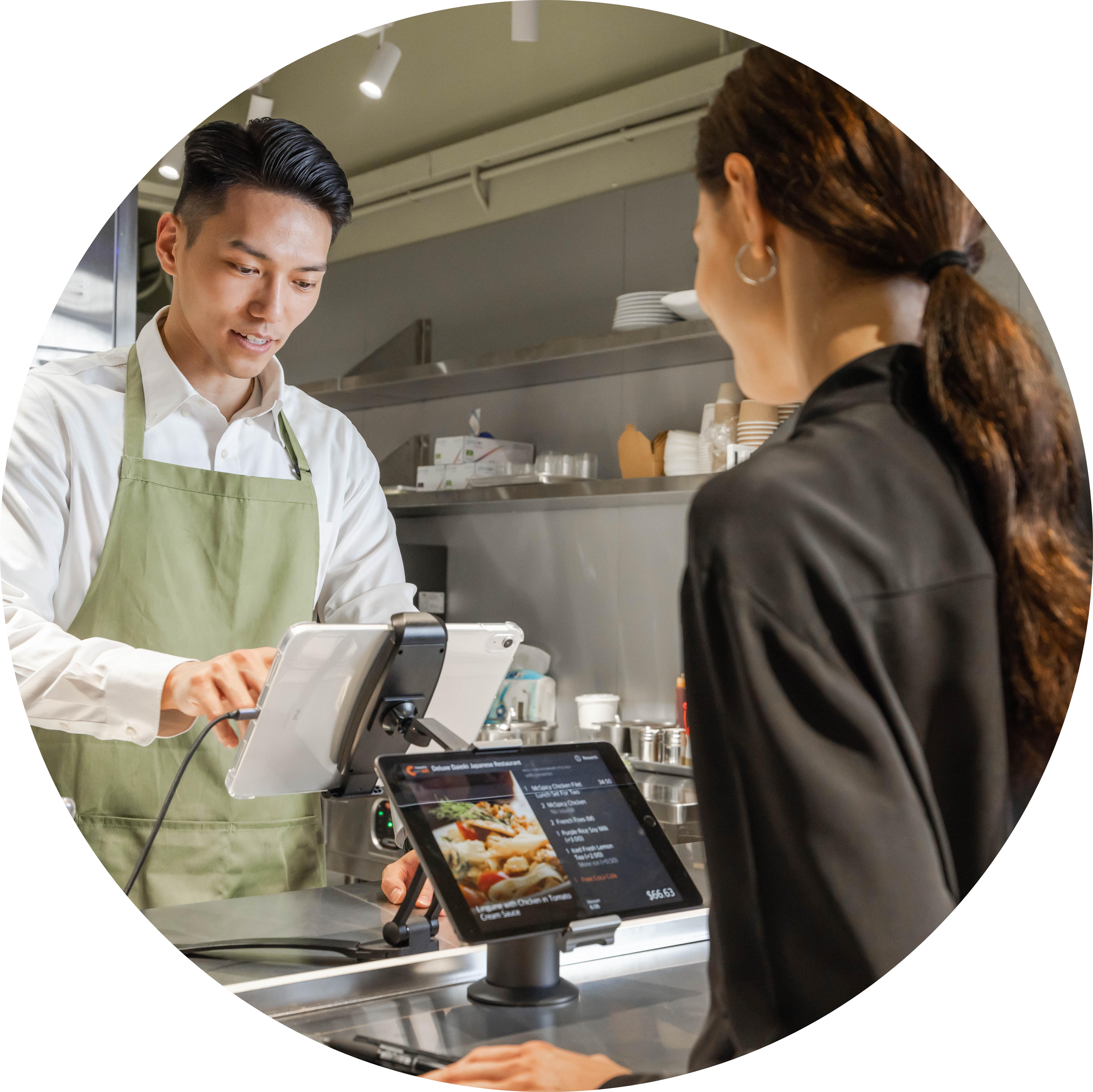
Made a Mistake? Make It Right Instantly!
If a customer spots an error when looking through their order details on the customer-facing display, you can make it right on the spot. Instead of getting angry complaints days later and having to dig up old receipts to fix ugly disputes, solving a potential problem on the spot keeps your business running smoothly and your customers happy.
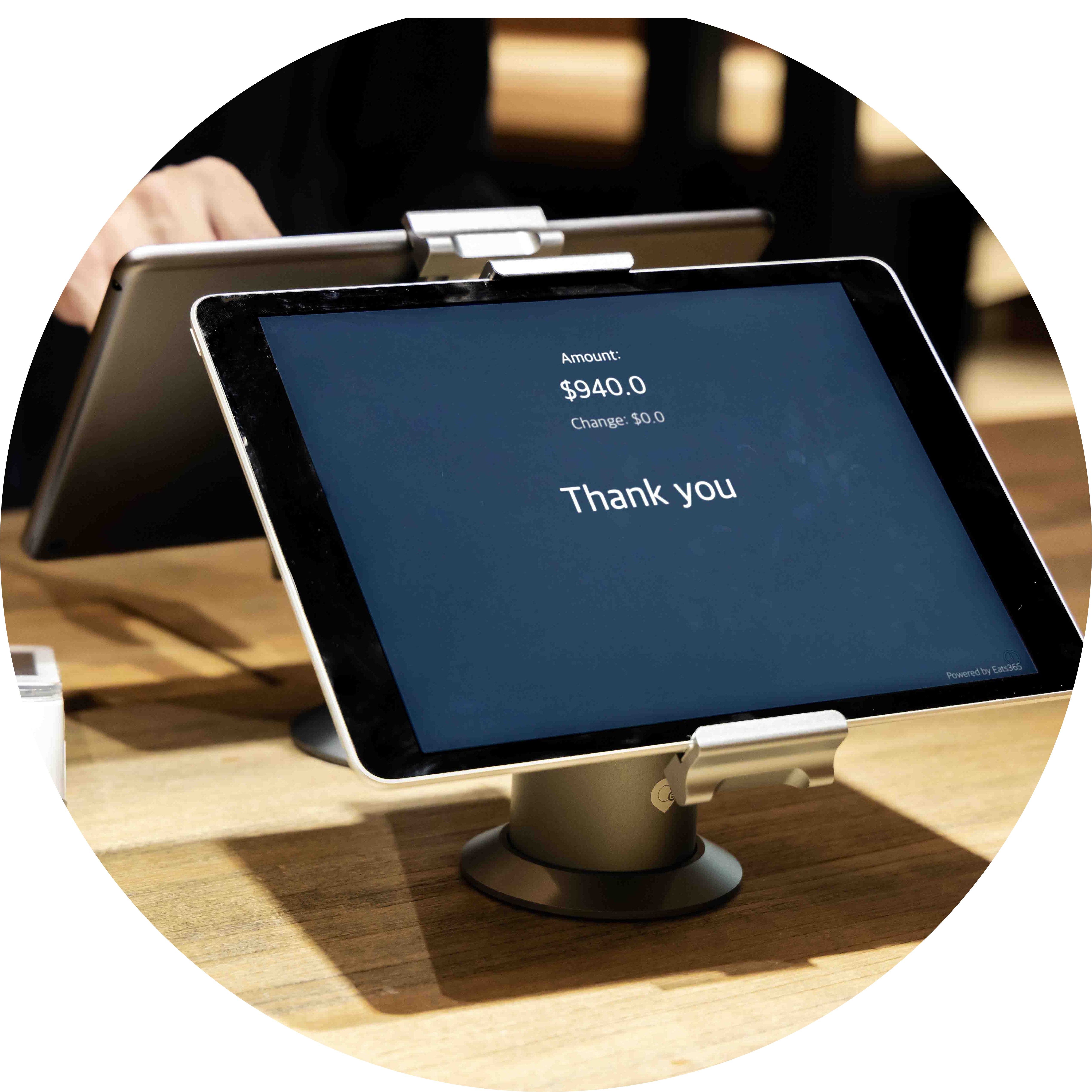
POS and Customer-Facing Display Positioned to Perfection
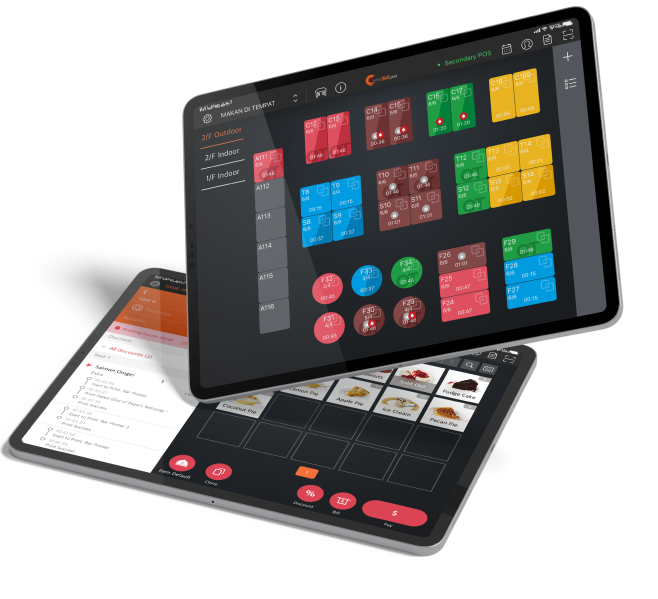
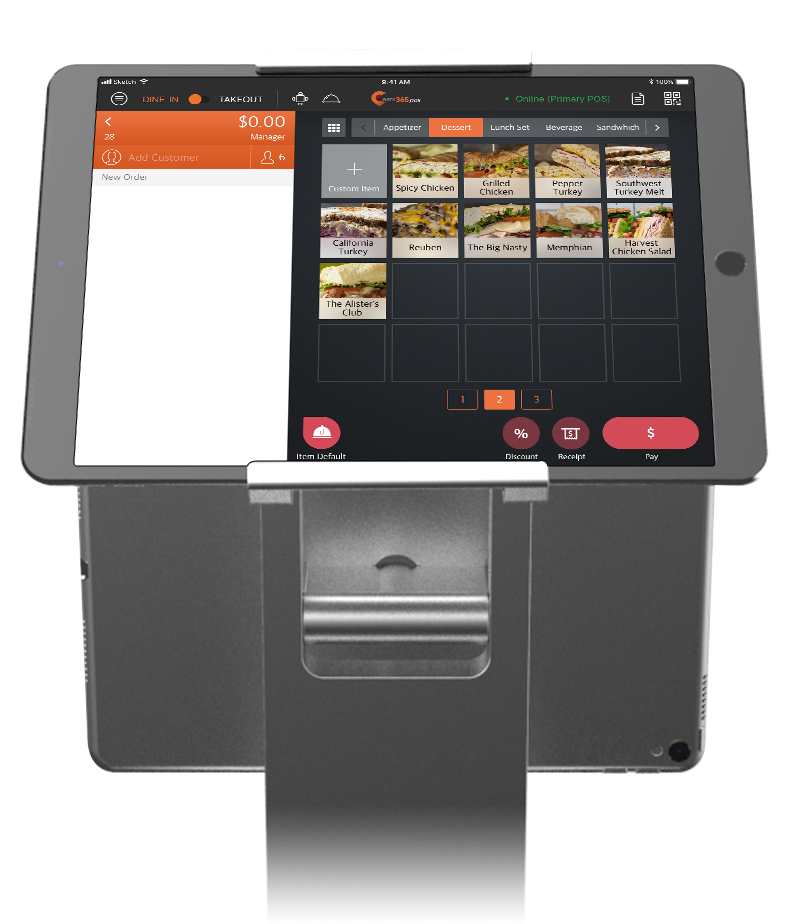
No matter how big or small your store is, a Customer-Facing Display can be placed to perfection while fitting in neatly with your design ethos. To maximize space efficiency, make use of a dual-screen iPad stand that simultaneously points your POS toward your cashier and your Customer-Facing display toward the customer.
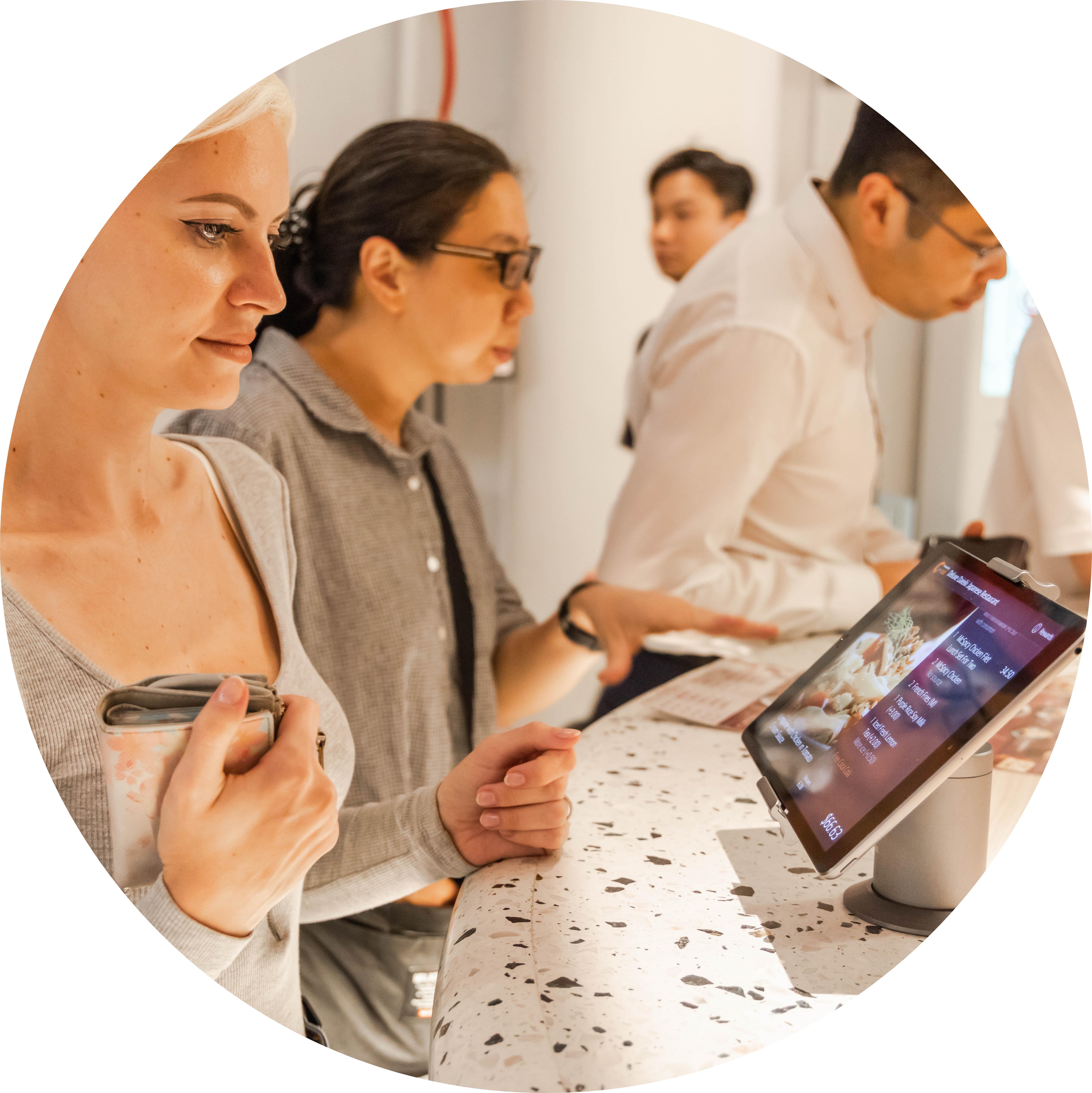
Use Media to Tempt Customers to Return
The Customer-Facing Display represents another opportunity for you to remind your customers why your business is special. By adding images and/or videos of upcoming deals, new items and amazing promotions on the customer-facing screen, you can use the checkout experience to not only build trust, but also guarantee that your customers will be eager to return to your restaurant.
Customer-Facing Display Features Overview

Full Order Breakdown Displayed
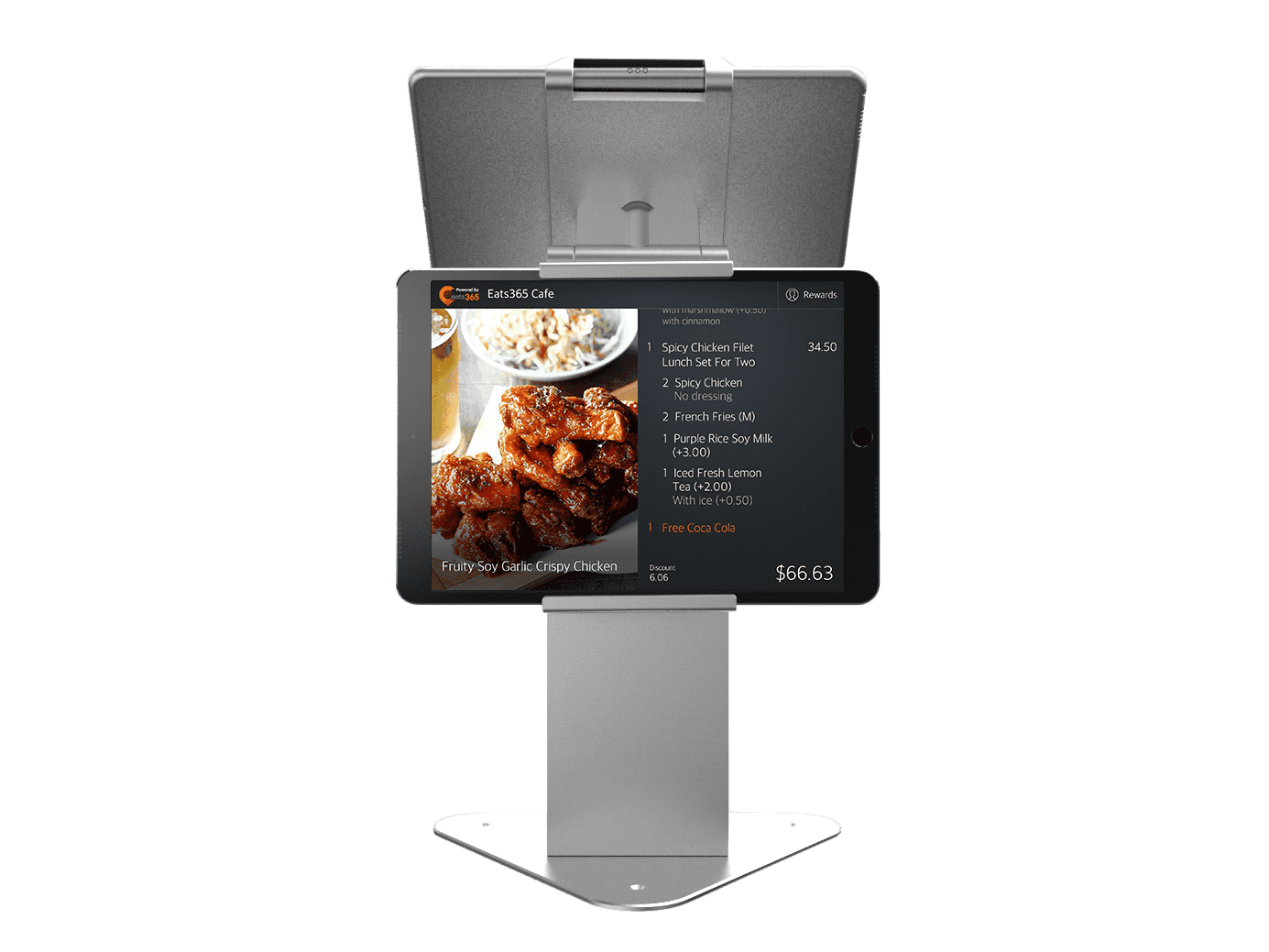
 Offer an itemized breakdown of each item on a customer’s bill on the display
Show individual pricing for each item and a total amount for convenience
Show any additional taxes and surcharges for transparency
Offer an itemized breakdown of each item on a customer’s bill on the display
Show individual pricing for each item and a total amount for convenience
Show any additional taxes and surcharges for transparency
Integration Reduces Complication
Fully integrated display system via cloud with other useful modules like the POS
Orders can be transferred instantly to the Customer-Facing Display from the POS
No lag or lengthy wait times, so you can speed up the checkout process

Show Promotional Media on Screen
Upload media groups like images and videos to display on your Customer-Facing Display
Set the specific order you want your media to appear in
Loop your media or pick a static image on the Customer-Facing Display
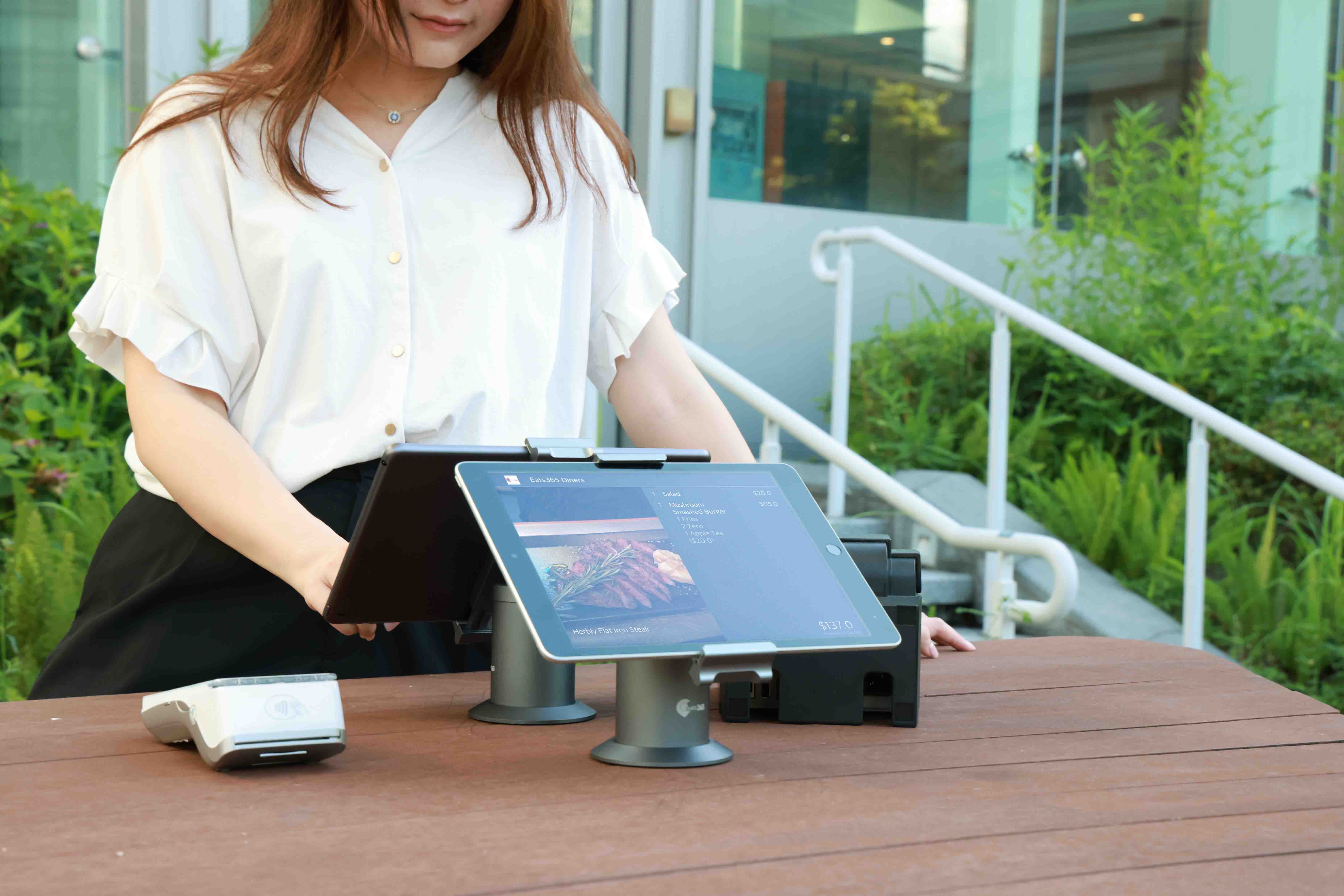
Full Order Breakdown Displayed
Offer an itemized breakdown of each item on a customer’s bill on the display
Show individual pricing for each item and a total amount for convenience
Show any additional taxes and surcharges for transparency
Integration Reduces Complication
Fully integrated display system via cloud with other useful modules like the POS
Orders can be transferred instantly to the Customer-Facing Display from the POS
No lag or lengthy wait times, so you can speed up the checkout process
Show Promotional Media on Screen
Upload media groups like images and videos to display on your Customer-Facing Display
Set the specific order you want your media to appear in
Loop your media or pick a static image on the Customer-Facing Display
Customer-Facing Display is Perfect for these Restaurant Types


Customer-Facing Display is Part of the Following Solution


Restaurants Like Yours Love the Customer-Facing Display

FAQs about Eats365 Customer-Facing Display
1. What is a Customer-Facing Display (CFD) in a restaurant?
A Customer-Facing Display is a digital screen that provides customers with a real-time view of their order details as they are being entered into the POS. It allows customers to verify itemized pricing, taxes, and surcharges before finalizing their transaction, which helps reduce order errors and build trust.
2. How does the Customer-Facing Display sync with the Eats365 POS?
The Customer-Facing Display is paired directly with the Eats365 POS. As staff add items to an order using the POS interface, the information is automatically updated on the CFD in real time, ensuring the customer sees the most current version of their bill.
3. Can I show advertisements or promotions on the customer screen?
Yes, you can upload media groups, including images and videos, to your Customer-Facing Display. When the system is idle, it can be used to promote new menu items, upcoming deals, or loyalty programs to keep customers engaged while waiting.
4. Does the Eats365 CFD support digital tipping?
Yes, the Customer-Facing Display can be configured to prompt customers for tips during the checkout process. This allows for a more discreet and modernized tipping experience where customers can select from preset percentages or enter a custom amount.
5. How do I set up and pair a Customer-Facing Display?
To set up the CFD, log in to your Eats365 POS terminal, navigate to Settings, and select 'Device Pairing.' From there, select 'Customer Facing Display' to connect the secondary screen to your main POS system.
6. What are the benefits of using a secondary display for customers?
A secondary display improves order accuracy by allowing customers to spot mistakes early, increases transparency regarding taxes and fees, and speeds up the ordering process. Additionally, it serves as a marketing tool to boost brand loyalty through personalized media and promotions.
Learn More about How the Customer-Facing Display Can Help Your Restaurant