
Best POS System that Integrates with Xero
Reasons to Choose Eats365 POS for Your Xero Integration

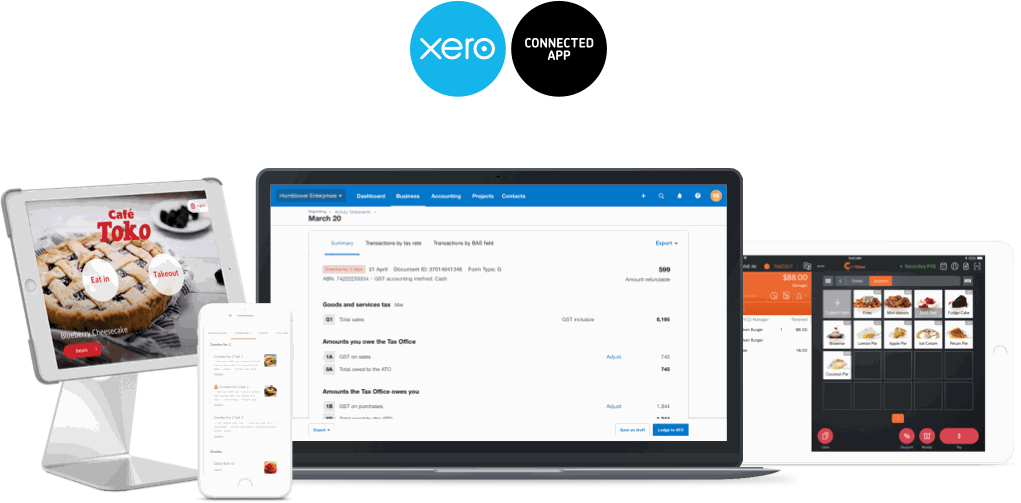
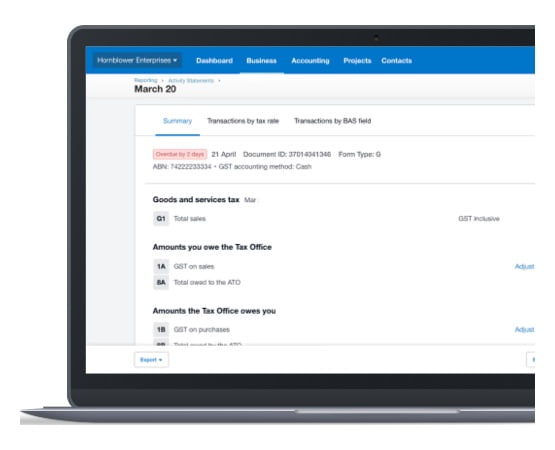
After performing the End of Day, all your sales data stored in Eats365 POS gets automatically synced to Xero without any further manual efforts.
Eats365 and Xero ensures that you are always in the know operationally and financially. Keep track of business health and profitability with all your accounting, seamlessly as one.
Choose how in-depth you’d like your accounts broken down to with Account Mapping. View financials across different outlets and stores at same basis.
Map your businesses between Eats365 and Xero on a one to one basis, or map multiple businesses on Eats365 to a single Xero Company using Tracking Categories within taps.
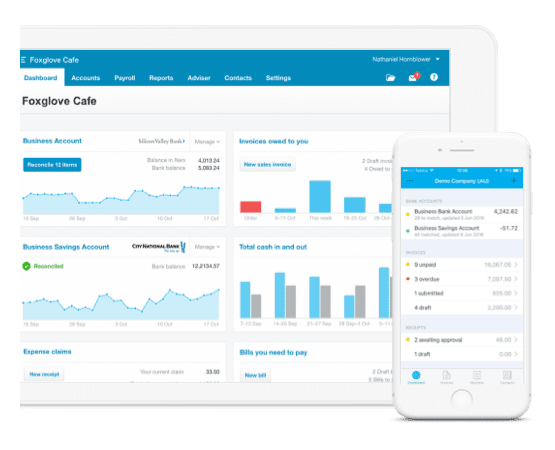
With Eats365n and Xero integrations, your accounting data is always close at hand. Log in on any smart devices to gain instant access to all your restaurant’s finances anywhere and anytime.
Financial Benefits of Eats365 POS & Xero Integration

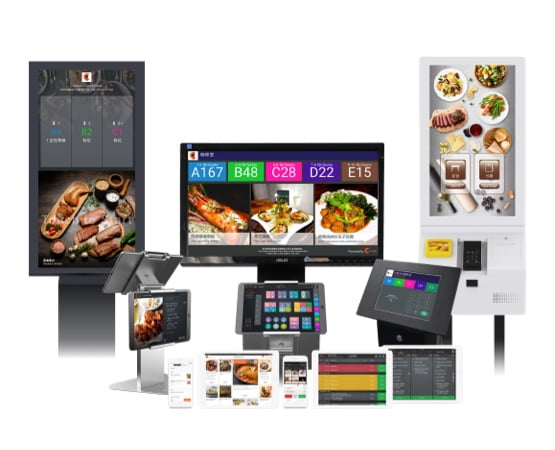
Why Eats365 is the Best POS System in Malaysia?
Why Xero is the Best Cloud Accounting Software in Malaysia?
Log in online anytime, anywhere on your Mac, PC, tablet or phone to Xero and see up-to-date financials.
Use Xero's mobile app to reconcile, send invoices, or create expense claims – from anywhere.
Xero automatically imports and categories your latest bank transactions for reconciliation. All you have to do is tap "OK"!
Send online invoices to your customers and get updates when they’re opened. E-invoice-ready for Malaysian requirements.
FAQ about Xero & Eats365 POS Integration
1. How does Xero & Eats365 integration work?
The integration works by linking your Eats365-powered restaurant directly with Xero’s accounting system. The accounting process is greatly simplified as a Daily Sales Summary is automatically sent to Xero after performing the End of Day function on your Eats365 POS. The Daily Sales Summary breaks down the numbers of the sales and payment account.
2. How to log in to Xero from Eats365 Merchant Portal?
- After logging onto Eats365 Merchant Portal, you will be able to find “Xero” under the “INTEGRATION” tab.
- After clicking “Connect to Xero”, the login page of the Xero Account Software should appear. If the login window does not appear, please ensure your browser allows popups from Xero.

- Log in with your registered email address and password.
- Click “Allow access” to authorize Eats365 to integrate with Xero.
3. How to set up your Xero integration & type of data supported?
- After authorizing access, select which account each item of your Daily Closing Report is mapped to. All items must be filled out or else you may encounter errors in your Daily Sales Report. Save once completed.
- Under the “Export” tab, create an Eats365 Xero Contact for billing before exporting daily Closing Reports to Xero. Make sure to save.
- Under the “Account Mappings” tab, select the account of each line item.

- Select the payment account of each line item in the following section.
- (If Sales Tax is applicable in your country/region) Map the tax rate in your Xero account with the tax rate set up in the Eats365 Merchant Portal.

- (Optional) Add all your outlets and business locations in the “Tracking Category” tab. This will let you see how each outlet performs individually.

- After saving all your settings correctly, Eats365 will send a Daily Sales report whenever End of Day is performed on the POS.
4. How to import data and get a daily closing report from Eats365 POS terminal?
- Start by navigating to “Business Operations” in the side menu and select the “Start Day” option. Then click on the “Perform Start of Day” button.
- Next, select “To Shift”
- Input the Open Till Amount (in this case, HKD1,000). Press “Open Shift” when the correct amount has been entered.
- When ready to end the shift, enter in the new Till Amount (in this case HKD1500). Press “Close Shift” when the correct amount has been entered.
- When the day is over, press the “Perform End of Day” button.
- You will get a summary of your sales and transactions, which will also be automatically imported to Xero. You can check your Daily Closing Report in the Xero integration tab in the Merchant Portal.

5. Troubleshooting: Cannot export daily closing report.
If your Daily Closing report cannot be exported correctly, you can see what is wrong under the “Export History” tab. If there is a “Failed” status in the same row of your report, you can click on the “View Log” option to get data on what has gone wrong, allowing you to rectify the issue.
6. How to disconnect Xero in the Eats365 Merchant Portal?
Navigate to your Xero integration within the Eats365 Merchant Portal. In the top right corner, you will be able to press the “Disconnect” button to disconnect Xero from the Eats365 Merchant Portal.
To disconnect completely, you may need to take additional steps to disconnect with Eats365 from within Xero.
7. How often does sales data sync?
POS sales data will sync whenever the End of Day action is performed. Your restaurant’s transaction data will be automatically sent to Xero with all your settings applied so you can keep track of your sales and payment accounts easily. If there are any errors in your Daily Sales Report, you will be alerted in ‘status’ section of the Export History tab.
8. Will all your outlets sync between Eats365 and Xero?
Yes. You can add multiple outlets from the Tracking Category tab under the same Xero account. This enables you to see the performance of your business as a whole, and based on each store.
9. Which Eats365 plans support Xero integration?
Eats365’s Advanced Plan and Corporate Plan both support integration with Xero.
10. How do I get started?
Simply get in touch to have an expert help you with your Eats365 and Xero integration journey.