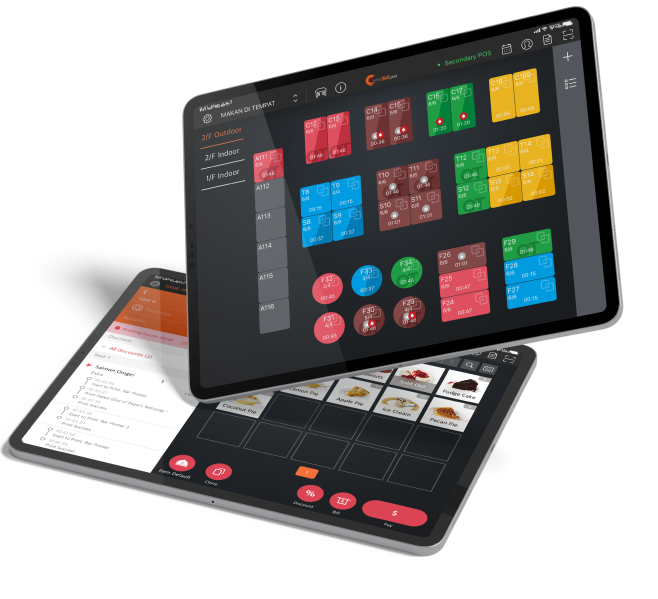
One Eats365 POS connects dine-in, takeaway, online orders, and third-party channels so your team is not jumping between tools.
iPad POS for Australian venues
Eats365 Restaurant POS
Quick setup, offline orders, cloud menu sync for Aussie restaurants
Run dine-in, takeaway, delivery, and online orders in one Eats365 POS built for Australia. Keep serving when the internet drops, sync menus across outlets, and connect guest channels where AI "You May Also Like" suggestions can support your growth.

Why Choose Eats365 POS?
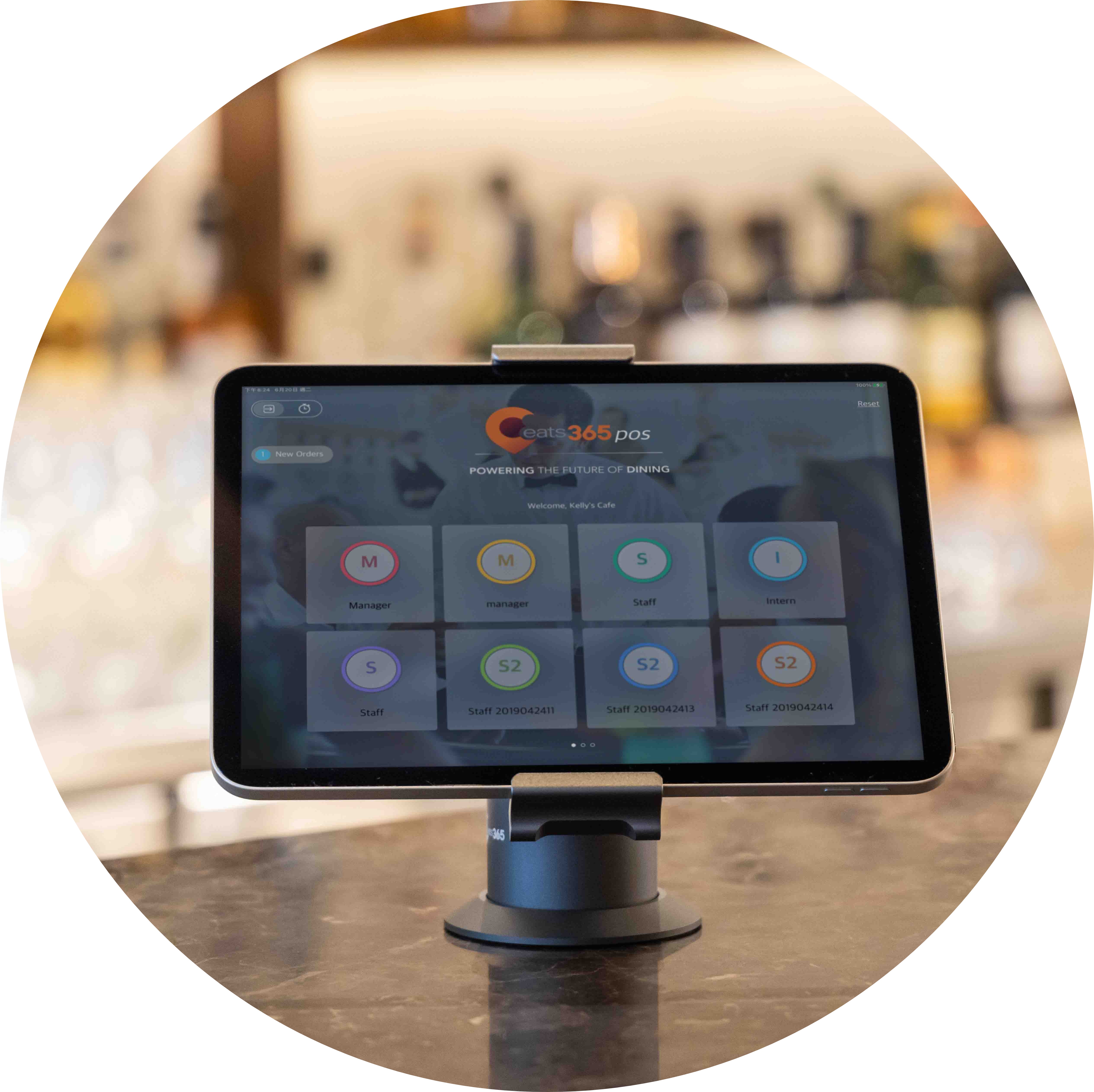
One System for All Channels

Free Staff from Busywork
Automate repetitive order and payment steps online and offline, so staff can focus on guests and faster table turns.
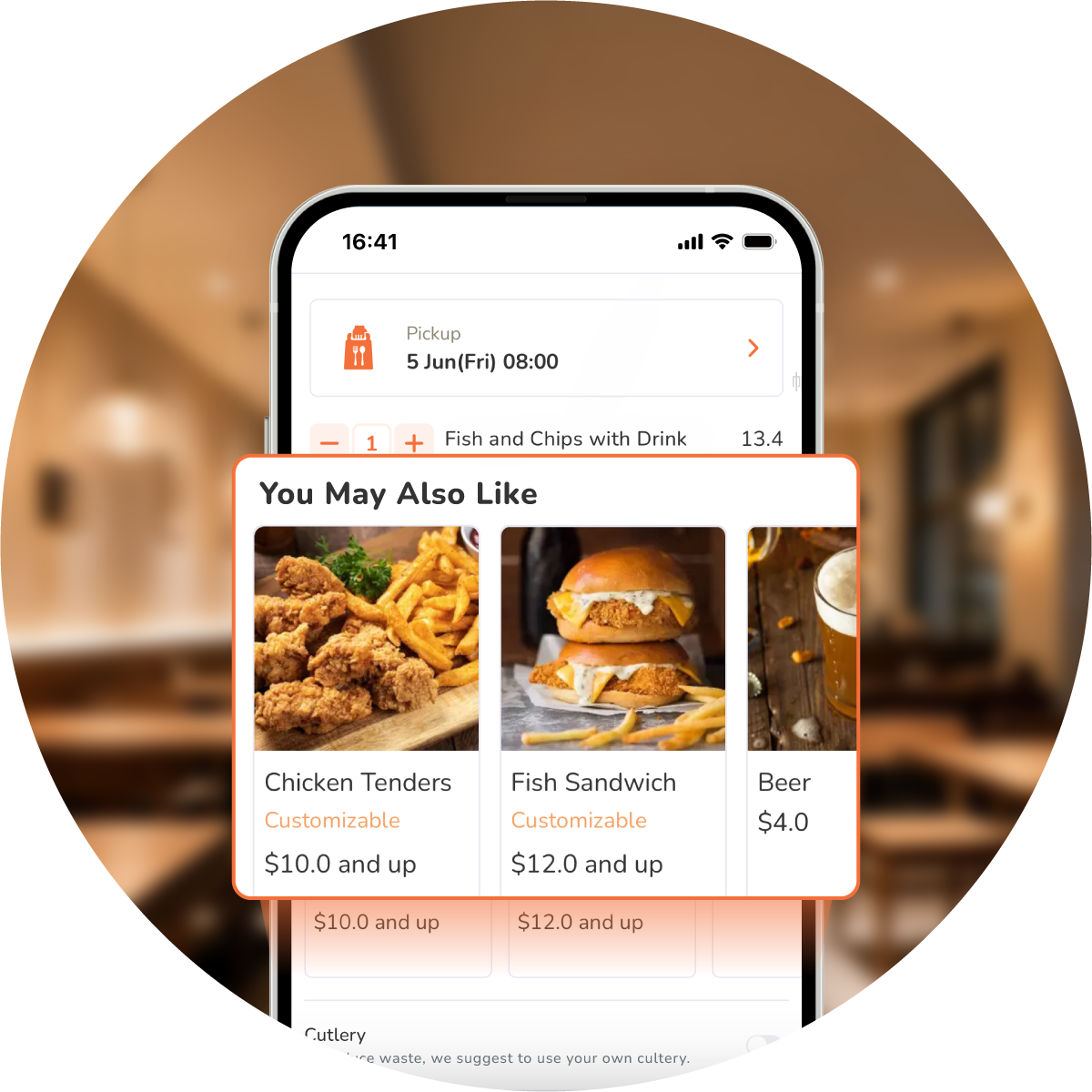
Grow Checks with AI Upsell
On your Branded Online Store, AI "You May Also Like" suggests items from sales trends, guest history, and the current cart. Track impressions, clicks, add-to-cart, and orders in the Upsell Performance Report. You can also set manual pre-checkout prompts for bags, cutlery, or featured items.
Manage Your Business
Retain Your Guests
Boost Productivity
Flexibility

One system for all
With Eats365 POS as your hub, connect dine-in, online ordering, kitchen, and expansion modules in one system.
Comprehensive printer settings
Pair as many printers as you like with your Eats365 POS, assign printers to specific kitchen stations and even customize print receipts to your liking - including multilingual options to perfect your operation flow
Offline mode orders
Offline Mode lets you keep taking orders on Eats365 POS and other order-taking modules when the internet is down. Transaction data syncs to the cloud when the connection returns.
Settings for every restaurant
With over 300 configurable settings, our POS lets you customize the setup to fit your restaurant's needs.

Deep Menu Management
Meaningful menu customization
Easily set up your perfect menu structure by customizing your categories, product types, combos and modifiers and even choose when they are available so every order is just as the customer likes it
Customizable POS menu keys
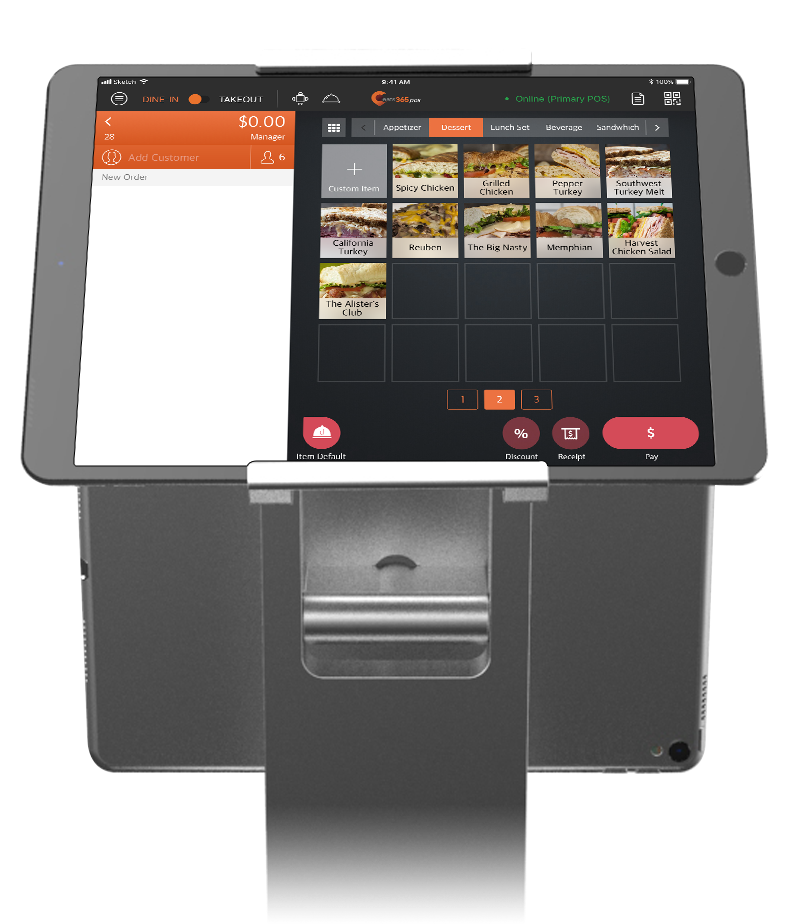
Edit your menu key font size, choose various color combinations and even add photos to make your Eats365 POS work best for you
Menu synchronization in minutes
Add new items, modify prices, delete items and update your menus across Eats365 POS, Eats365 expansion modules and all of your business locations at once rather than spending hours updating them one by one
Item tracking on your POS
Our POS system keeps count of menu items you specify so that you always know how many you have in stock and can remove sold-out items
POS with built-in menu time slots
You can set time slots for items and menus of your choice so that they only appear on your Eats365 POS and connected Eats365 expansion modules when you want them to

Staff Management
User and security group management
Choose the level of authority different users have while using your POS based on the chain of command. Our 3-tier (store - brand - organization) structure makes managing scaling F&B businesses a breeze. You can even set different accounts for individual staff and require a personalized PIN number or a RFID card for secure POS access.
Clock in and out with Eats365 POS
Easily keep track of when your staff members begin and end their shifts with included photo identification. This way, you can track staff working hours, amount earned per shift and overall staff performance
Staff performance report
Access a comprehensive breakdown of how your staff have performed at the end of each day. You can use this to reward your star players and spot inefficiencies

Back-Office Analytics
BI dashboard
Enjoy access to business intelligence reporting where your business figures are visualized in the form of graphs, charts and other easy-to-analyze formats
Multi-restaurant view
If you run a chain of restaurants or multiple businesses all on the Eats365 system, you can track all their data in one place - consolidated or separated, from any of your smart devices
Item-depth analysis
With sales data from your Eats365 POS system, you can see which items sell the best and how much revenue they bring in over time
Customer analysis
Gain a comprehensive understanding of your customers and their ordering habits by keeping tabs on things like spend amount, number of visits and items ordered from your Eats365 POS
User and shift reports
Keep track of how long your staff work and how much they bring in. You can even view reports from specific dates of your choosing so you can identify your star players
Discount reports
Have access to useful figures such as sales reports, best-selling items and discount reports that let you track which promotions were the most successful
Upsell performance report
In Merchant Portal, review how "You May Also Like" performs: impressions, clicks, add-to-cart, and orders, plus top recommended items so you can improve your upsell mix.
Customer-Centric Approach
Multi-language support
Choose the languages that fit your staff and guests on Eats365 POS.
Easy queuing
Use Eats365 POS in addition with the Queue Ticket Kiosk Expansion Module to pair waiting customers with empty tables for a streamlined queue-to-table experience

Apply Local Payment
Accept online payments
Accept payments on Eats365 POS for online orders from your Branded Online Store, Eats365 Marketplace, and popular third-party ordering platforms.
Local payment partners
Let guests pay how they prefer with integrated partners, including local options alongside cards and other supported methods.
Customizable tender types
Choose from a pre-set number of non-integrated tender types on your Eats365 POS for additional versatility. You can also add your own custom tender types so you have all relevant payment methods covered
Flexible bill management
Give your customers the option to split their bill evenly or by item or to merge their bills. You can easily create as many split or merged bills as necessary on your Eats365 POS
Multi-currency support
Allow customers to pay in their preferred currency when your business operates across multiple countries, in an airport or if you operate somewhere that commonly accepts multiple currencies with Eats365 POS
Multi-currency reporting
No matter how many countries you operate across, you can set each exchange rate and have reports for every region converted into a single currency of your choosing with Eats365 POS. This makes understanding global performance much clearer

AI Upsell Tools
Real AI Suggestions
Predictive suggestions on your Branded Online Store recommend items based on sales trends, guest purchase history, and what is already in the cart. Guests may see "You May Also Like" or "Recommended for You" while browsing or at checkout.
Upsell at pre-checkout
Set manual rules to prompt guests for add-ons such as cutlery, drinks, or featured items before checkout. These prompts are rule-based, not AI, and work on supported online ordering and kiosk modules.

Table Management
Floorplan management


Eats365 POS gives your staff a full view of what's going on in your restaurant. Set different areas, the number of tables and even choose the number of floors in your restaurant
Manage dine-in and takeout altogether
Choose between dine-In and takeout modes directly from the POS and manage different sets of orders in an organized and systematic way
Transfer, merge and share tables
Your staff can quickly transfer, merge or share tables to make the best use of your restaurant’s space and meet the needs of customers with a few taps on the Eats365 POS
Color-coded statuses
Tables are highlighted in different colors to indicate useful information such as which customers are waiting on meals, which tables need their bills, which tables need cleaning and which are empty. If a customer exceeds a set time limit, an ‘OT’ overlay will be displayed on the table
Assign queueing customers to tables
Use your POS system to view queue ticket numbers issued from your Eats365 Queue Kiosk , how many people per party and elapsed waiting times so you can assign them to the most suitable table
Reservation tracking
Keep track of incoming reservations right on your POS system. With integrated third-party reservation systems, you can clearly manage your booking schedule and assign the right tables to the right customers without getting overwhelmed
Organized kitchen stations
Set up specific kitchen stations and assign items to be fired to those stations while taking tableside orders
Simplified Order-Taking

Hold/ fire items on demand
You can manually hold items and fire them when necessary so that you donât overload the kitchen and allow your customers to specify when they want different items served to them
Flexible coursing
Set coursing for different items to create the perfect fine-dining experience. Each table is represented with a different color on the POS to indicate what course itâs on, while kitchen tickets and receipts also show coursing so your staff donât serve dishes in the wrong order
Switch menus easily
Switch between different menus like seasonal menus, lunch and dinner menus, special menus and a whole range of others. You can even set your menus to change automatically based on specified timings
Always current
Powered by Cloud technology, your menus across Eats365 POS and all Eats365 modules can display the latest items that you add and can even be set to remove sold-out items automatically
Hide sold-out items
Track the number of each menu item you have so that sold-out items can be set to no longer appear across Eats365 POS and relevant Eats365 modules when they are out of stock
Kitchen Organization
All orders in one place
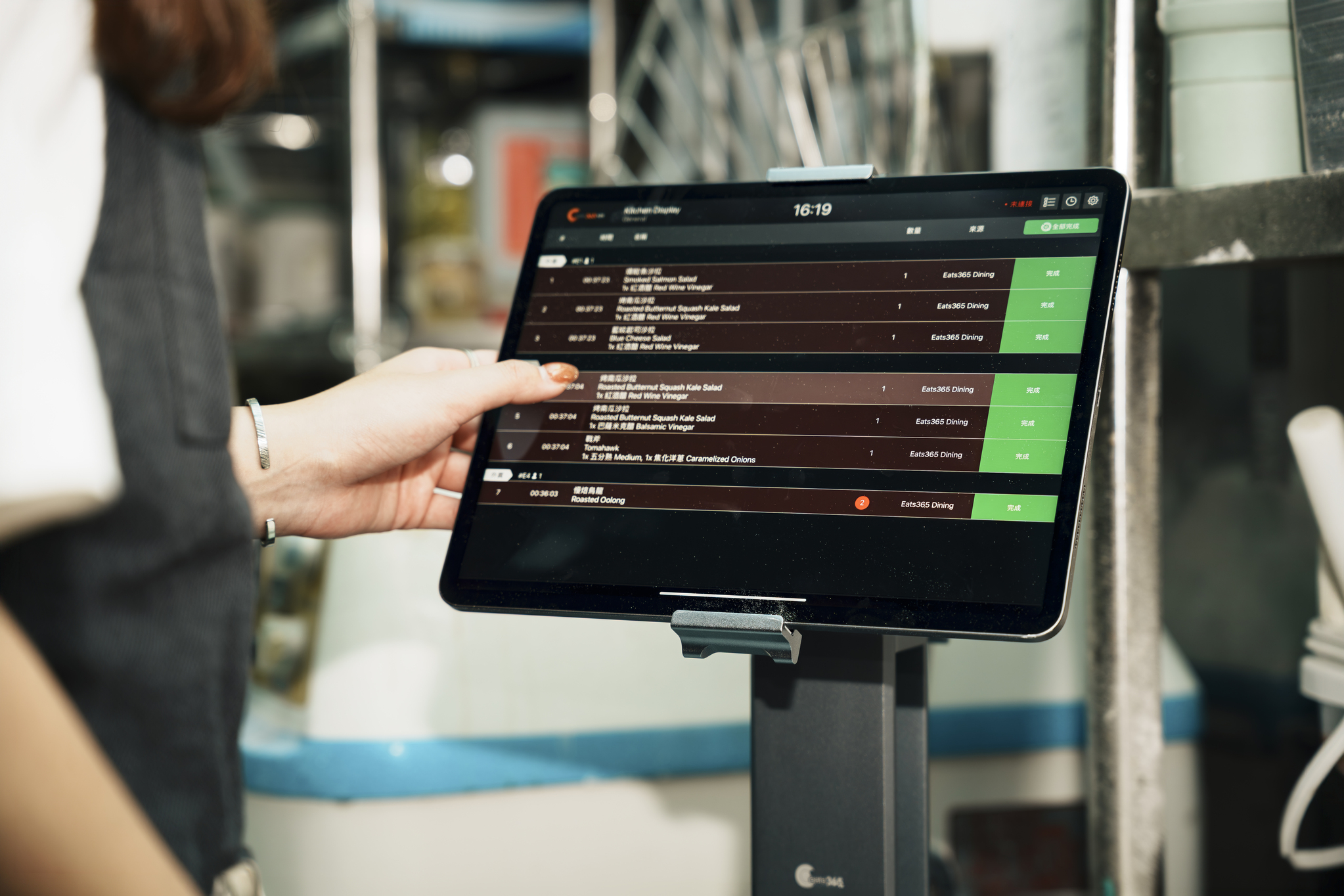
When you add a Kitchen Display System Expansion Module to your Eats365 POS, your chefs will be able to interact with vital order information on screens instead of kitchen tickets so they can manage orders more efficiently
Instant order delivery
Staff no longer have to waste time manually traveling between the kitchen and Front of House to deliver kitchen tickets. When an order is taken, items can be split up and automatically sent to relevant kitchen departments, where they will show up on Kitchen Display Systems in real-time or be printed out according to your preferred settings
Real-time order updates
When you pair your POS with a Kitchen Display System Expansion Module, your kitchen staff can immediately see changes and act accordingly whenever orders are edited after they have been placed.
Flexibility
One system for all


With Eats365 POS as your hub, connect dine-in, online ordering, kitchen, and expansion modules in one system.
Comprehensive printer settings
Pair as many printers as you like with your Eats365 POS, assign printers to specific kitchen stations and even customize print receipts to your liking - including multilingual options to perfect your operation flow
Offline mode orders
Offline Mode lets you keep taking orders on Eats365 POS and other order-taking modules when the internet is down. Transaction data syncs to the cloud when the connection returns.
Settings for every restaurant
With over 300 configurable settings, our POS lets you customize the setup to fit your restaurant's needs.
Deep Menu Management
Meaningful menu customization
Easily set up your perfect menu structure by customizing your categories, product types, combos and modifiers and even choose when they are available so every order is just as the customer likes it
Customizable POS menu keys
Edit your menu key font size, choose various color combinations and even add photos to make your Eats365 POS work best for you
Menu synchronization in minutes
Add new items, modify prices, delete items and update your menus across Eats365 POS, Eats365 expansion modules and all of your business locations at once rather than spending hours updating them one by one
Item tracking on your POS
Our POS system keeps count of menu items you specify so that you always know how many you have in stock and can remove sold-out items
POS with built-in menu time slots
You can set time slots for items and menus of your choice so that they only appear on your Eats365 POS and connected Eats365 expansion modules when you want them to
Staff Management
User and security group management
Choose the level of authority different users have while using your POS based on the chain of command. Our 3-tier (store - brand - organization) structure makes managing scaling F&B businesses a breeze. You can even set different accounts for individual staff and require a personalized PIN number or a RFID card for secure POS access.
Clock in and out with Eats365 POS
Easily keep track of when your staff members begin and end their shifts with included photo identification. This way, you can track staff working hours, amount earned per shift and overall staff performance
Staff performance report
Access a comprehensive breakdown of how your staff have performed at the end of each day. You can use this to reward your star players and spot inefficiencies
Back-Office Analytics
BI dashboard
Enjoy access to business intelligence reporting where your business figures are visualized in the form of graphs, charts and other easy-to-analyze formats
Multi-restaurant view
If you run a chain of restaurants or multiple businesses all on the Eats365 system, you can track all their data in one place - consolidated or separated, from any of your smart devices
Item-depth analysis
With sales data from your Eats365 POS system, you can see which items sell the best and how much revenue they bring in over time
Customer analysis
Gain a comprehensive understanding of your customers and their ordering habits by keeping tabs on things like spend amount, number of visits and items ordered from your Eats365 POS
User and shift reports
Keep track of how long your staff work and how much they bring in. You can even view reports from specific dates of your choosing so you can identify your star players
Discount reports
Have access to useful figures such as sales reports, best-selling items and discount reports that let you track which promotions were the most successful
Upsell performance report
In Merchant Portal, review how "You May Also Like" performs: impressions, clicks, add-to-cart, and orders, plus top recommended items so you can improve your upsell mix.
Customer-Centric Approach
Multi-language support
Choose the languages that fit your staff and guests on Eats365 POS.
Easy queuing
Use Eats365 POS in addition with the Queue Ticket Kiosk Expansion Module to pair waiting customers with empty tables for a streamlined queue-to-table experience
Apply Local Payment
Accept online payments
Accept payments on Eats365 POS for online orders from your Branded Online Store, Eats365 Marketplace, and popular third-party ordering platforms.
Local payment partners
Let guests pay how they prefer with integrated partners, including local options alongside cards and other supported methods.
Customizable tender types
Choose from a pre-set number of non-integrated tender types on your Eats365 POS for additional versatility. You can also add your own custom tender types so you have all relevant payment methods covered
Flexible bill management
Give your customers the option to split their bill evenly or by item or to merge their bills. You can easily create as many split or merged bills as necessary on your Eats365 POS
Multi-currency support
Allow customers to pay in their preferred currency when your business operates across multiple countries, in an airport or if you operate somewhere that commonly accepts multiple currencies with Eats365 POS
Multi-currency reporting
No matter how many countries you operate across, you can set each exchange rate and have reports for every region converted into a single currency of your choosing with Eats365 POS. This makes understanding global performance much clearer
AI Upsell Tools
Real AI Suggestions
Predictive suggestions on your Branded Online Store recommend items based on sales trends, guest purchase history, and what is already in the cart. Guests may see "You May Also Like" or "Recommended for You" while browsing or at checkout.
Upsell at pre-checkout
Set manual rules to prompt guests for add-ons such as cutlery, drinks, or featured items before checkout. These prompts are rule-based, not AI, and work on supported online ordering and kiosk modules.
Table Management
Floorplan management
Eats365 POS gives your staff a full view of what's going on in your restaurant. Set different areas, the number of tables and even choose the number of floors in your restaurant
Manage dine-in and takeout altogether
Choose between dine-In and takeout modes directly from the POS and manage different sets of orders in an organized and systematic way
Transfer, merge and share tables
Your staff can quickly transfer, merge or share tables to make the best use of your restaurant’s space and meet the needs of customers with a few taps on the Eats365 POS
Color-coded statuses
Tables are highlighted in different colors to indicate useful information such as which customers are waiting on meals, which tables need their bills, which tables need cleaning and which are empty. If a customer exceeds a set time limit, an ‘OT’ overlay will be displayed on the table
Assign queueing customers to tables
Use your POS system to view queue ticket numbers issued from your Eats365 Queue Kiosk , how many people per party and elapsed waiting times so you can assign them to the most suitable table
Reservation tracking
Keep track of incoming reservations right on your POS system. With integrated third-party reservation systems, you can clearly manage your booking schedule and assign the right tables to the right customers without getting overwhelmed
Organized kitchen stations
Set up specific kitchen stations and assign items to be fired to those stations while taking tableside orders
Simplified Order-Taking
Hold/ fire items on demand
You can manually hold items and fire them when necessary so that you donât overload the kitchen and allow your customers to specify when they want different items served to them
Flexible coursing
Set coursing for different items to create the perfect fine-dining experience. Each table is represented with a different color on the POS to indicate what course itâs on, while kitchen tickets and receipts also show coursing so your staff donât serve dishes in the wrong order
Switch menus easily
Switch between different menus like seasonal menus, lunch and dinner menus, special menus and a whole range of others. You can even set your menus to change automatically based on specified timings
Always current
Powered by Cloud technology, your menus across Eats365 POS and all Eats365 modules can display the latest items that you add and can even be set to remove sold-out items automatically
Hide sold-out items
Track the number of each menu item you have so that sold-out items can be set to no longer appear across Eats365 POS and relevant Eats365 modules when they are out of stock
Kitchen Organization
All orders in one place
When you add a Kitchen Display System Expansion Module to your Eats365 POS, your chefs will be able to interact with vital order information on screens instead of kitchen tickets so they can manage orders more efficiently
Instant order delivery
Staff no longer have to waste time manually traveling between the kitchen and Front of House to deliver kitchen tickets. When an order is taken, items can be split up and automatically sent to relevant kitchen departments, where they will show up on Kitchen Display Systems in real-time or be printed out according to your preferred settings
Real-time order updates
When you pair your POS with a Kitchen Display System Expansion Module, your kitchen staff can immediately see changes and act accordingly whenever orders are edited after they have been placed.
Eats365 POS fits these restaurant types


See Why Restaurants Recommend Eats365
FAQs about Eats365 Restaurant POS
1. What restaurant types is Eats365 POS for?
Eats365 POS supports QSR, full service, food courts, cafes, cloud kitchens, buffets, and multi-outlet groups, with workflows that match how each model takes and fires orders.
2. How does Eats365 handle online and delivery orders?
Online and scheduled orders land in the POS Order List so staff can accept or reject in real time. Use the Pre-Order Report and Scheduled filter to track upcoming bookings.
3. Is Eats365 an iPad restaurant POS?
Yes. Eats365 Restaurant POS runs on iPad for Australian restaurants, with cloud sync across outlets and Offline Mode so you can keep taking orders when the internet drops.
4. What payments can I accept on Eats365 POS?
Through integrated payment partners, you can accept cards, e-wallets, and other local or global methods available in Australia, plus custom tender types on the POS.
5. Does Eats365 use AI to recommend menu items?
On your Branded Online Store, AI "You May Also Like" suggestions use sales trends, guest history, and the current cart. Track results in the Upsell Performance Report on Merchant Portal.
6. What if my internet goes down?
Offline Mode keeps order-taking running on Eats365 POS and connected order modules. When the connection returns, transaction data syncs back to the cloud.
Your Eats365 Growth Guide

Top Kitchen Management Software for Aussie Restaurants & Cafes (2026)
 30 Jan 2026

Struggling with rising food costs and waste in your Aussie kitchen? Powerful kitchen management software is the key to streamlining operations, cutting expenses, and boosting your bottom line.
Kitchen management
Restaurant POS Features
Read More

5 Best iPad POS System for Small Australian Cafes
16 Jun 2025
That clunky cash register could be costing you customers. The right iPad POS system transforms efficiency and service, but which is best? We compare top options for Australian cafes.
F&B Entrepreneurship
Restaurant POS System
Read More

Best Restaurant POS Software in Australia in 2026
24 Feb 2025
Australian restaurants face mounting pressures, making the right Point-of-Sale (POS) system crucial for survival and growth. With so many options on the market, how do you pick a system that genuinely supports your business without breaking the bank? We suggest looking for a solution that scales with you, keeps compliance simple, and saves time for staff who are already stretched.
Restaurant POS System
Foodtech
Read More