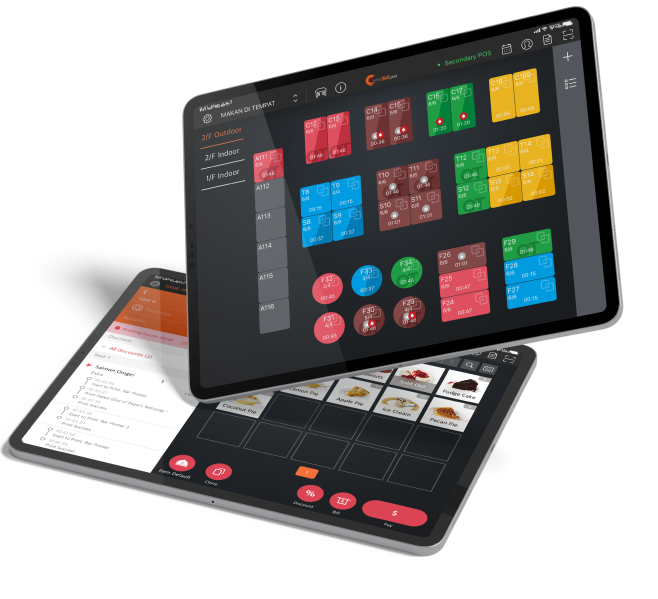
Free up your wait staff with an Android-based mPOS that lets them make meaningful connections with customers thanks to great portability, convenient tableside order-taking and powerful table management features.
mPOS
for Tableside Orders
Mobilizing Your Staff to Put the Customer First
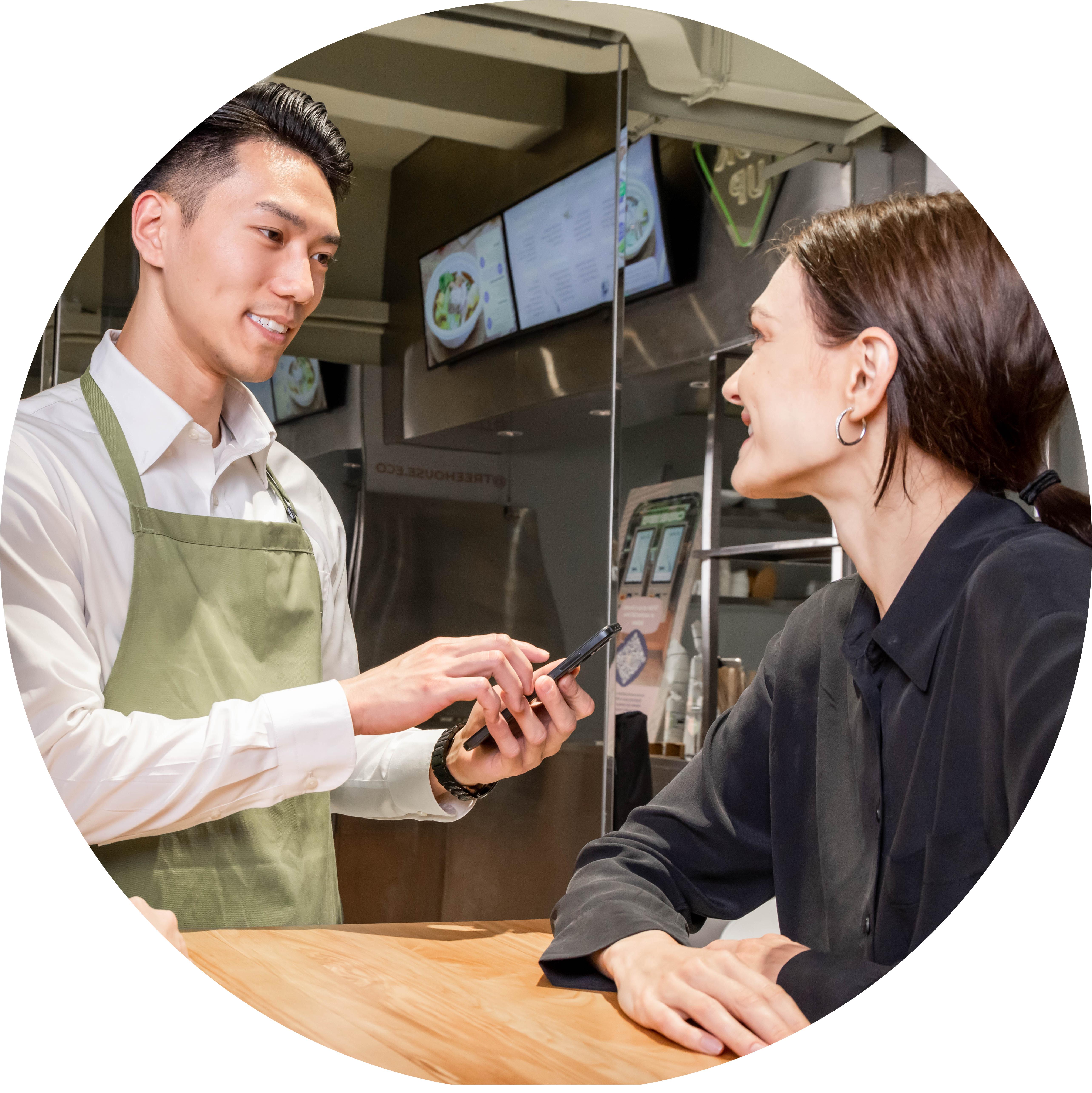
Stop running orders back and forth across the floor. A handheld mPOS lets your staff take orders tableside and focus on what matters — connecting with customers and upselling naturally.
How Does an mPOS Help You Manage More Tables?

Mobilize Your Staff with a Handheld Device
Error-Free Tableside Orders

Running between tables, the POS and the kitchen makes errors inevitable. With modifiers, special requests, combos and all your menus on the handheld mPOS, staff take orders right the first time.

Save Time, Serve More
With mPOS, orders go straight to your Kitchen Display System and sync automatically with your Eats365 POS — no more running marathons to close each order.
Minimal Hardware Requirements
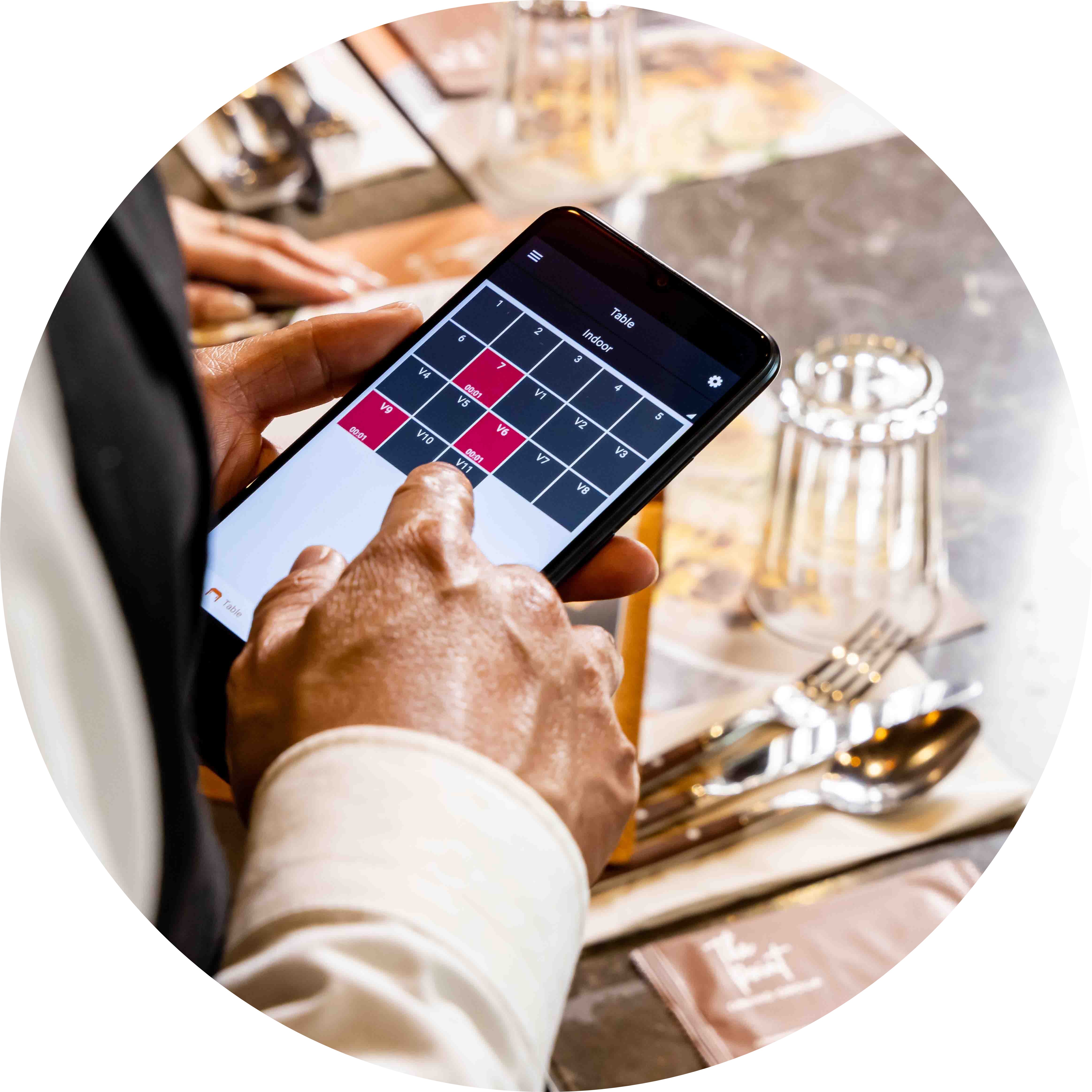
All you need is a compatible Android device — most modern smartphones work, so you may already have the hardware to start today. Or use an all-in-one terminal with built-in payments like the Sunmi V2.
Small Form Factor, Big Benefits
 Brings the core ordering functionality of a POS into a mobile form factor
Lets wait staff move freely, even in small restaurants
No more messy notebooks and pens
Runs on any compatible Android device — including all-in-one terminals like the Sunmi V2
Brings the core ordering functionality of a POS into a mobile form factor
Lets wait staff move freely, even in small restaurants
No more messy notebooks and pens
Runs on any compatible Android device — including all-in-one terminals like the Sunmi V2

Tableside Ordering Simplified
Modifiers, combos and multiple menus right in your staff's hand
Orders go straight to the Kitchen Display System — no walking tickets to the kitchen
All order data synced automatically with your Eats365 POS, with full order history
Accept payments tableside when a card reader is connected
Print receipts on devices with a built-in printer (e.g. Sunmi V2s, iMin Swift 2 Pro); on other Android phones, printing is handled by the POS
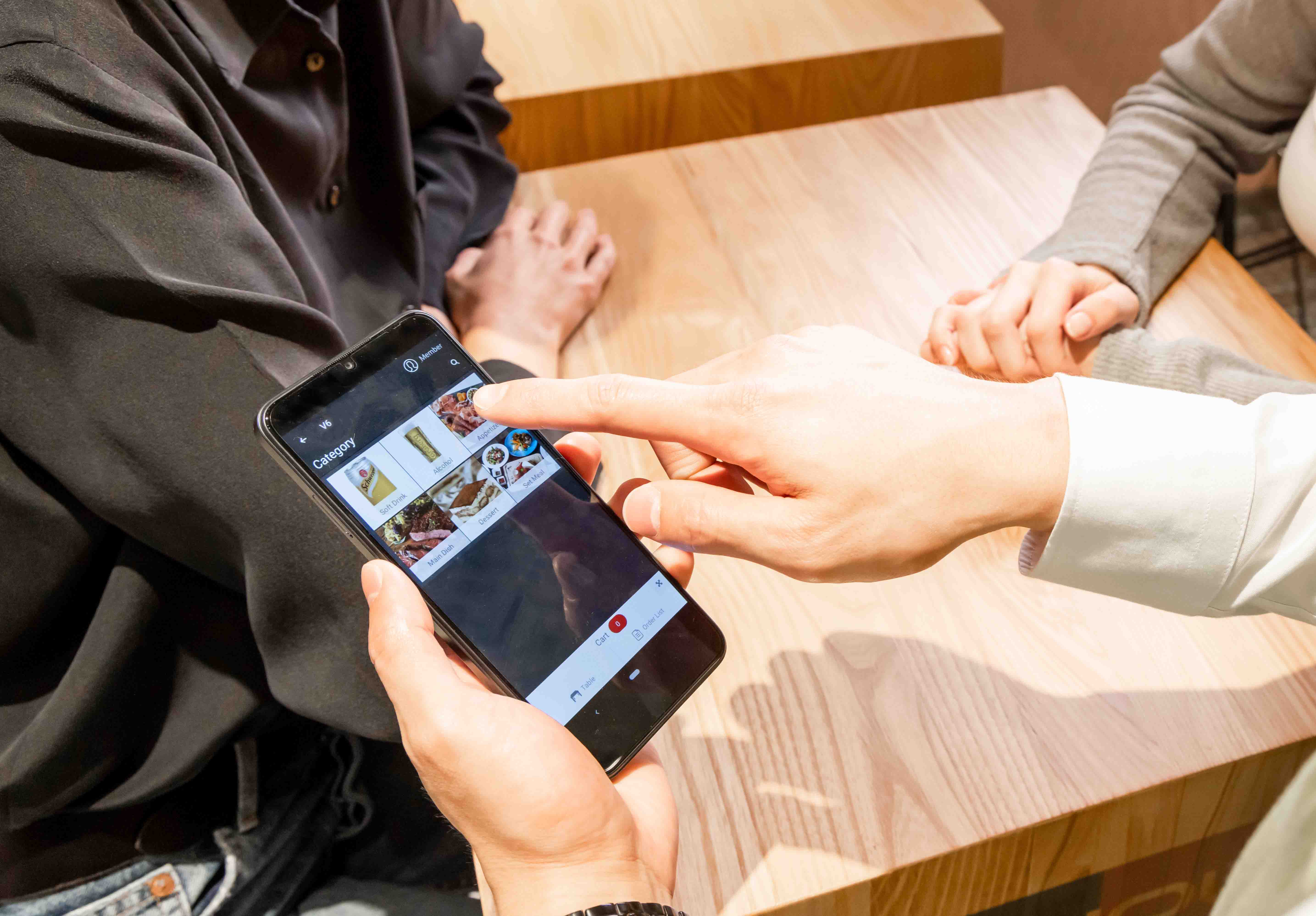
Keep Track of Tables at All Times
Full view of all tables at all times
Tables highlighted by color to show status
Fewer empty tables and shorter waits, so table turnover goes up

Link Members at the Table
Look up an existing member by name, phone or card number and add them to the order tableside
Member spend is tracked automatically for loyalty programs and promotions
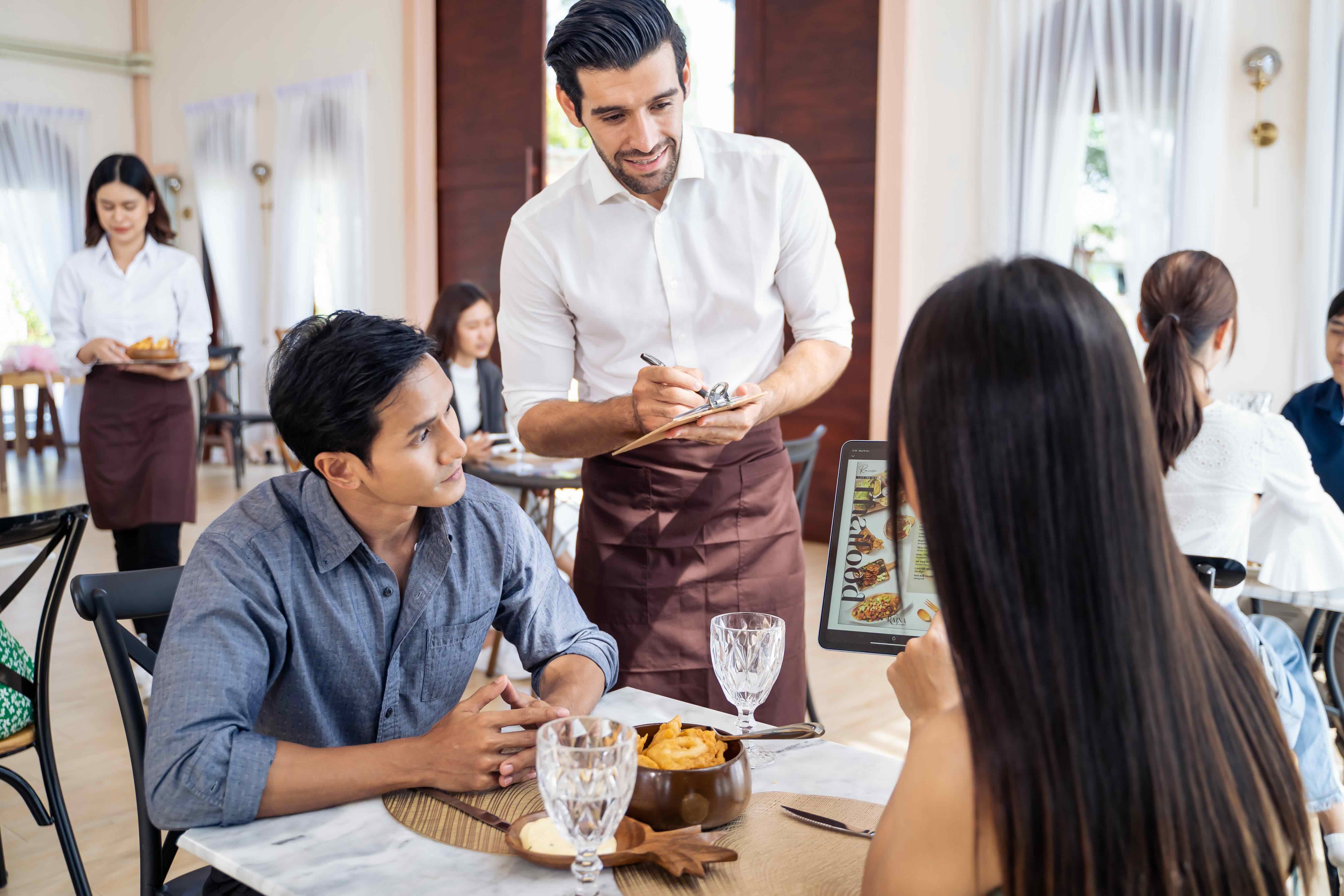
Small Form Factor, Big Benefits
Brings the core ordering functionality of a POS into a mobile form factor
Lets wait staff move freely, even in small restaurants
No more messy notebooks and pens
Runs on any compatible Android device — including all-in-one terminals like the Sunmi V2
Tableside Ordering Simplified
Modifiers, combos and multiple menus right in your staff's hand
Orders go straight to the Kitchen Display System — no walking tickets to the kitchen
All order data synced automatically with your Eats365 POS, with full order history
Accept payments tableside when a card reader is connected
Print receipts on devices with a built-in printer (e.g. Sunmi V2s, iMin Swift 2 Pro); on other Android phones, printing is handled by the POS
Keep Track of Tables at All Times
Full view of all tables at all times
Tables highlighted by color to show status
Fewer empty tables and shorter waits, so table turnover goes up
Link Members at the Table
Look up an existing member by name, phone or card number and add them to the order tableside
Member spend is tracked automatically for loyalty programs and promotions
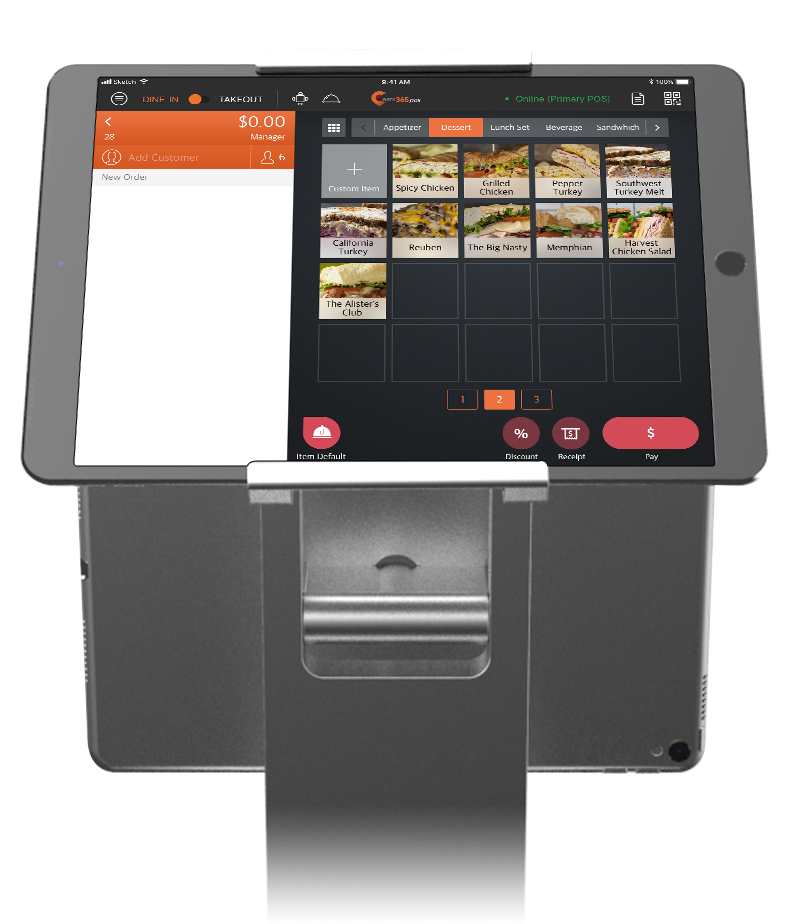
mPOS is Perfect for these Restaurant Types


mPOS is Part of the Following Solutions


Restaurants Like Yours Love the mPOS
FAQs about Eats365 mPOS
1. What is an mPOS and how does it work in a restaurant?
An mPOS (mobile Point of Sale) is a portable handheld device that combines the full functionality of a traditional POS with the mobility of a smartphone or tablet. In a restaurant, it allows staff to take orders directly at the table and send them instantly to the kitchen, eliminating the need to walk back and forth to a stationary terminal.
2. Can I use any mobile device as an mPOS with Eats365?
The Eats365 mPOS solution is designed to work on compatible Android devices. By installing the mPOS app on a handheld Android terminal or smartphone, your staff can manage tables, enter orders, and confirm customer requests from anywhere on the restaurant floor.
3. How does mPOS improve restaurant service efficiency?
mPOS improves efficiency by reducing the time staff spend running between the dining area and stationary POS terminals. It minimizes order errors by allowing servers to punch in items at tableside and increases table turnover by streamlining the communication flow between the front-of-house and the kitchen.
4. Does the Eats365 mPOS support tableside ordering and editing?
Yes, the mPOS allows waitstaff to enter orders directly at the tableside, as well as review, edit, and confirm orders placed by customers. This real-time synchronization ensures that the kitchen always has the most up-to-date information for every table.
5. What do I need to run the mPOS, and are there any limits?
The mPOS runs on a compatible Android device and must be paired with the Eats365 POS — it can't operate on its own. You'll need an advanced subscription and one mPOS license per device, and the mPOS must stay on the same network as the POS with a stable internet connection. It handles dine-in tableside ordering; changes, cancellations and takeout orders are done on the POS.
6. How do I set up a new mPOS device with my existing system?
To set up a new mPOS, you need to download the app onto a compatible Android device and log in using your Merchant ID. Once logged in, you can configure device-specific preferences, such as default order view modes and auto sign-out settings, through the system's general preferences menu.
Your Eats365 Growth Guide
Set Up Restaurant Online Ordering: A Complete Guide for Owners
 07 May 2025

Eager to meet modern diners’ demands? Learn how to create online ordering for your restaurant and significantly boost your orders and efficiency with our guide.
Online ordering
Restaurant POS Features
Foodtech
Read More

10 Major Advantages of a Cloud-based POS System for Restaurants
19 Dec 2024
A Cloud POS is a revolutionary tool for restaurants to streamline operations. From real-time data access to seamless updates, discover how cloud-based systems outperform traditional POS solutions for modern F&B businesses!
Restaurant POS System
Cloud-based POS
Read More

Is a Mobile POS (mPOS) the Same as a Point of Sale (POS) and How to Choose the Right mPOS for Singapore
05 Feb 2020
What is an mPOS and how can it benefit Singapore businesses?
Read More