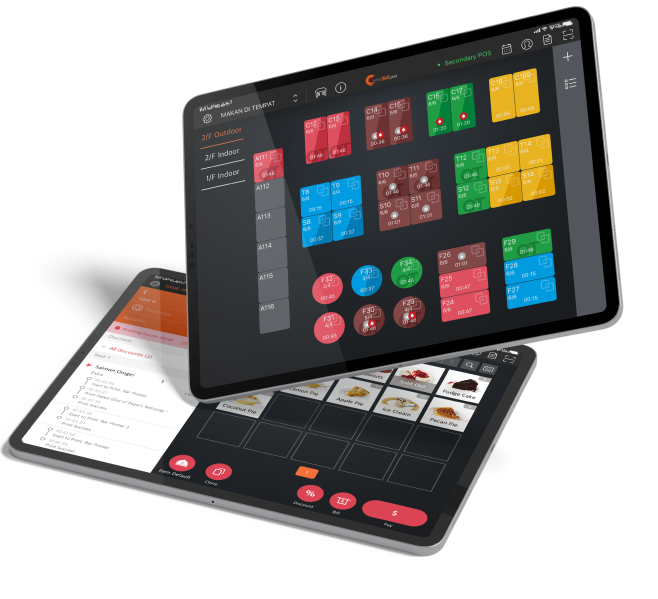
Free up your wait staff with an Android-based mPOS that lets them make meaningful connections with customers thanks to great portability, convenient tableside order-taking and powerful table management features.
mPOS
Mobilizing Your Staff to Put the Customer First
If your restaurant has plenty of floorspace and a lot of tables to manage, it’s almost impossible for staff to rely on memorization and fast handwriting to keep track of orders. This is where a handheld mPOS can help your staff to focus more on building connections with the customer, providing memorable experiences and upselling in a way that’s genuinely appreciated.
How Can an mPOS Help You Manage More Tables and Orders?

Mobilize Your Staff with a Handheld Device
Error-Free Tableside Orders
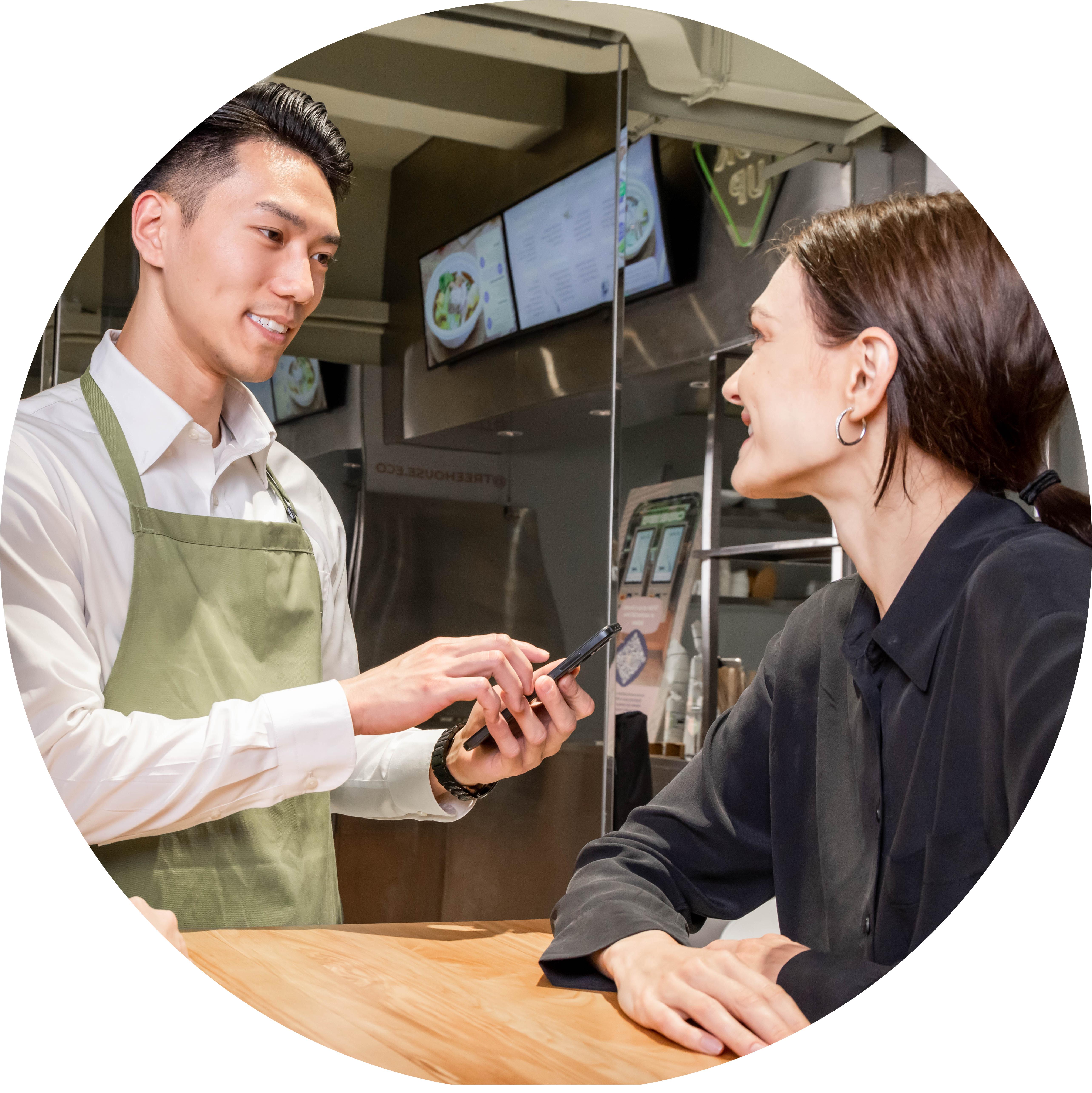
If your staff have to waste time running between tables and a POS (Point of Sale) system or the kitchen, it’s just a matter of time before errors occur. Simplify the order-taking process and minimize errors by bringing together modifiers, special requests, combos and all your menus directly on the handheld mPOS.
Save Time, Serve More with mPOS
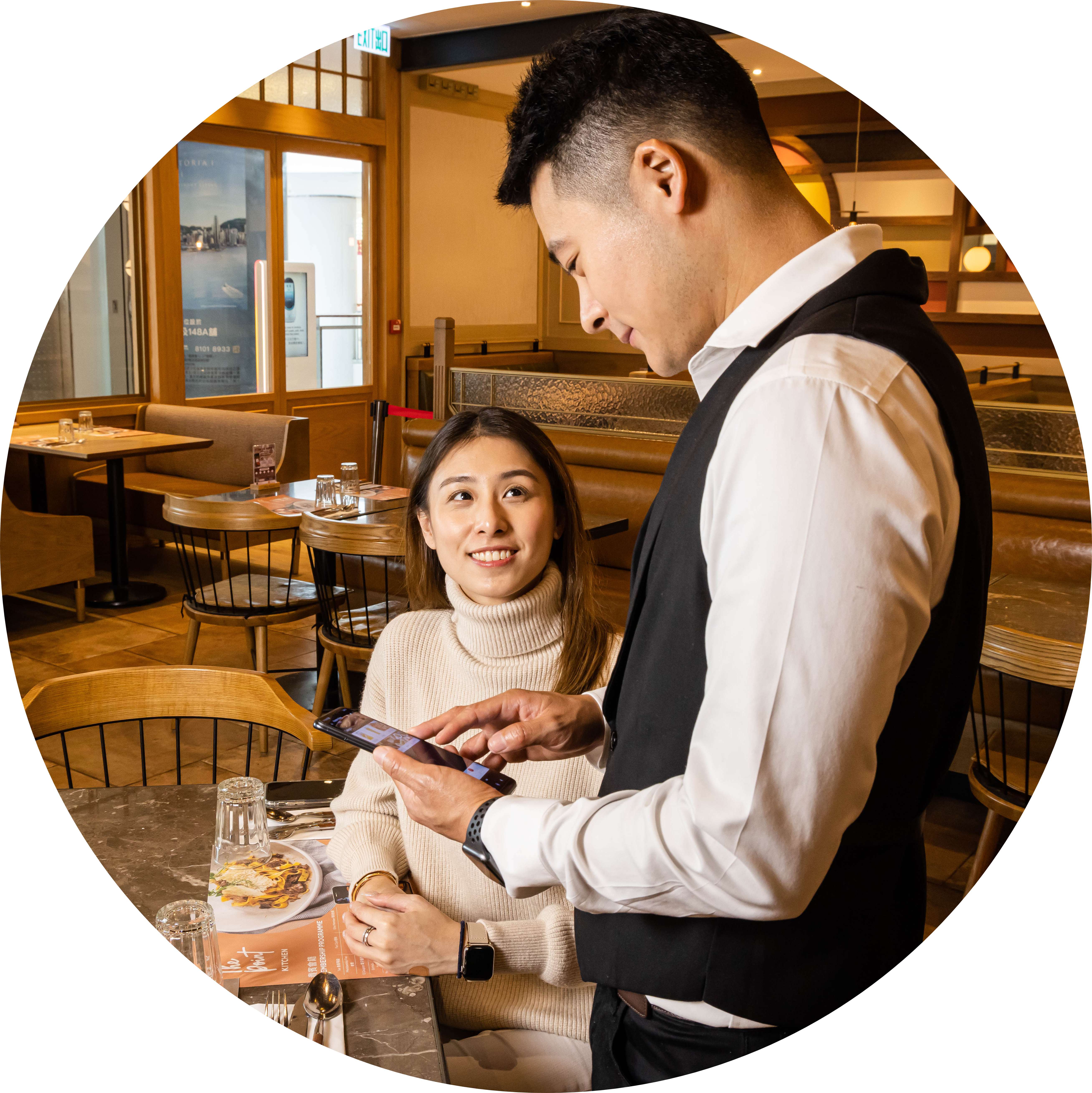
If your staff have to currently run between front-of-house tables and your POS (Point of Sale) System to punch in orders or your kitchen to deliver tickets, your efficiency will take a huge hit. Instead, opt for a mobile POS – mPOS where orders can be directly sent to your Kitchen Display Systems and your kitchen printers. mPOS orders are also synced automatically with your Eats365 POS so your staff don’t need to waste time running a marathon to complete each order.
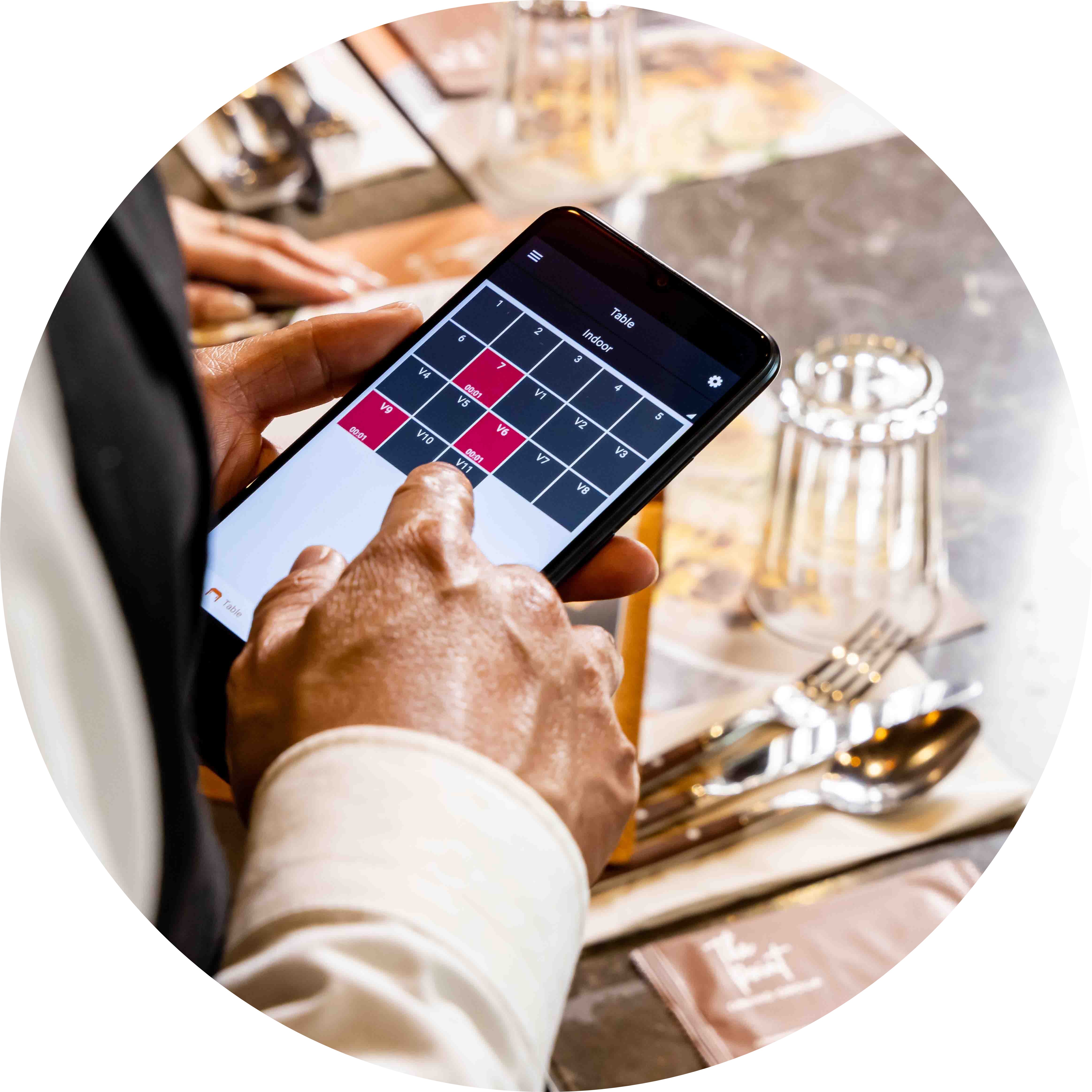
Minimal Hardware Requirements
All you need to get up and running with your mPOS is a compatible Android device. Most modern Android smartphones are suitable, so you probably already have the hardware you need to start using your mPOS right now! You can even use Android handheld POS devices with built-in payment options like the Sunmi V2.
mPOS Features Overview
Small Form Factor, Big Benefits
 Combines the functionality of a POS in the form factor of a mobile device
mPOS allows wait staff to move freely even in small restaurants
No need for staff to carry around messy notebooks and pens
Minimal hardware required to set up - just use any compatible Android smart device
Combines the functionality of a POS in the form factor of a mobile device
mPOS allows wait staff to move freely even in small restaurants
No need for staff to carry around messy notebooks and pens
Minimal hardware required to set up - just use any compatible Android smart device

Tableside Ordering Simplified

Modifiers, combos and multiple menus right in the palm of your staff’s hand
No need to punch in orders manually and deliver them to the kitchen
All order data synced automatically with a comprehensive order history available
Accept payments on the mPOS when attached to relevant hardware for added speed and convenience
Print receipts on devices with a built-in printer (e.g. Sunmi V2s, iMin Swift 2 Pro); on other Android phones, printing is handled by the POS
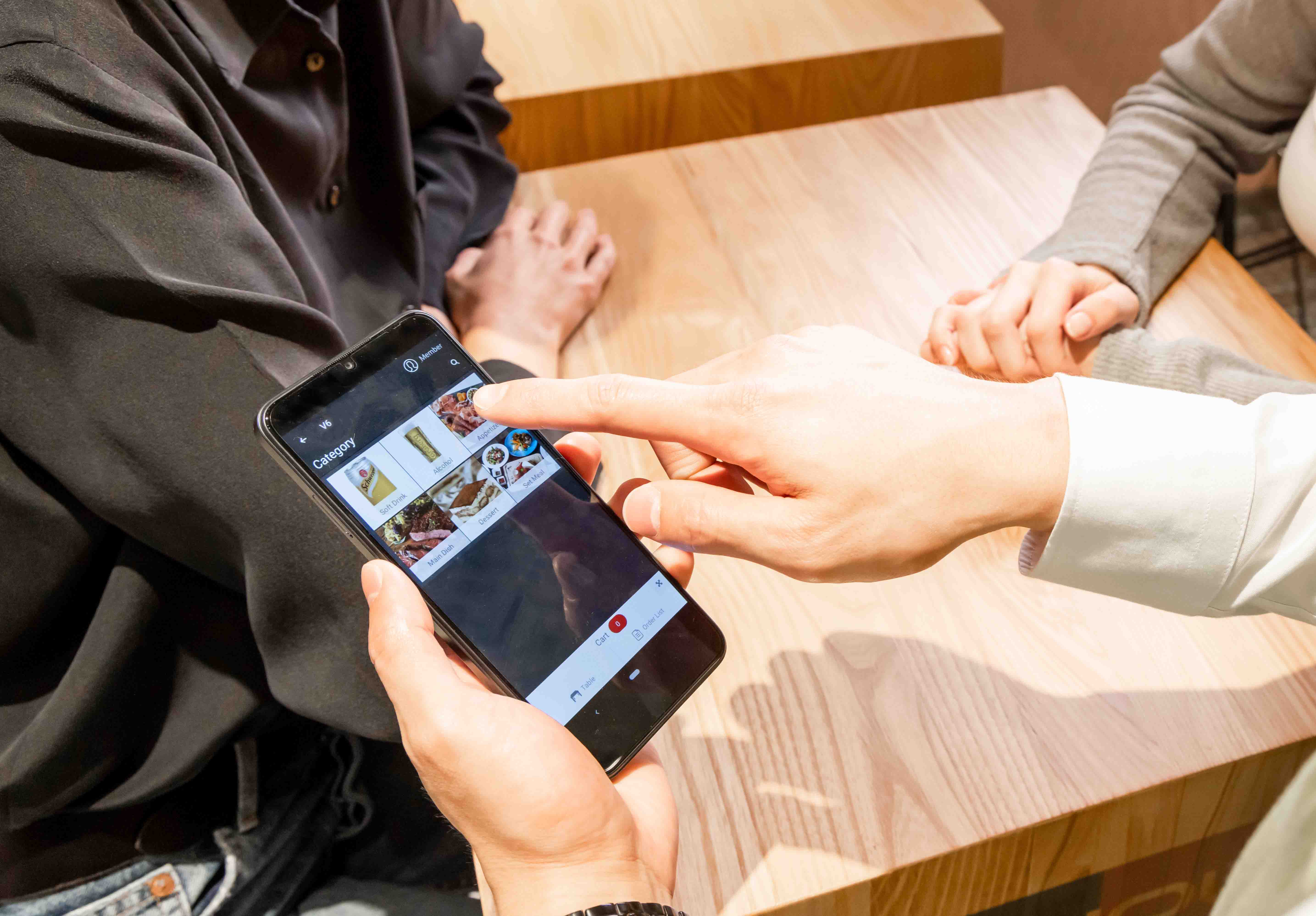
Keep Track of Tables at All Times
Wait staff have a full view of all tables at all times on their mPOS
Tables are highlighted in various colors to indicate their status
Never keep customers waiting or tables unoccupied so that your table turnover can increase

Link Members at the Table
Look up an existing member by name, phone or card number and add them to the order tableside
Member spend is tracked automatically for loyalty programs and promotions

Small Form Factor, Big Benefits
Combines the functionality of a POS in the form factor of a mobile device
mPOS allows wait staff to move freely even in small restaurants
No need for staff to carry around messy notebooks and pens
Minimal hardware required to set up - just use any compatible Android smart device
Tableside Ordering Simplified
Modifiers, combos and multiple menus right in the palm of your staff’s hand
No need to punch in orders manually and deliver them to the kitchen
All order data synced automatically with a comprehensive order history available
Accept payments on the mPOS when attached to relevant hardware for added speed and convenience
Print receipts on devices with a built-in printer (e.g. Sunmi V2s, iMin Swift 2 Pro); on other Android phones, printing is handled by the POS
Keep Track of Tables at All Times
Wait staff have a full view of all tables at all times on their mPOS
Tables are highlighted in various colors to indicate their status
Never keep customers waiting or tables unoccupied so that your table turnover can increase
Link Members at the Table
Look up an existing member by name, phone or card number and add them to the order tableside
Member spend is tracked automatically for loyalty programs and promotions
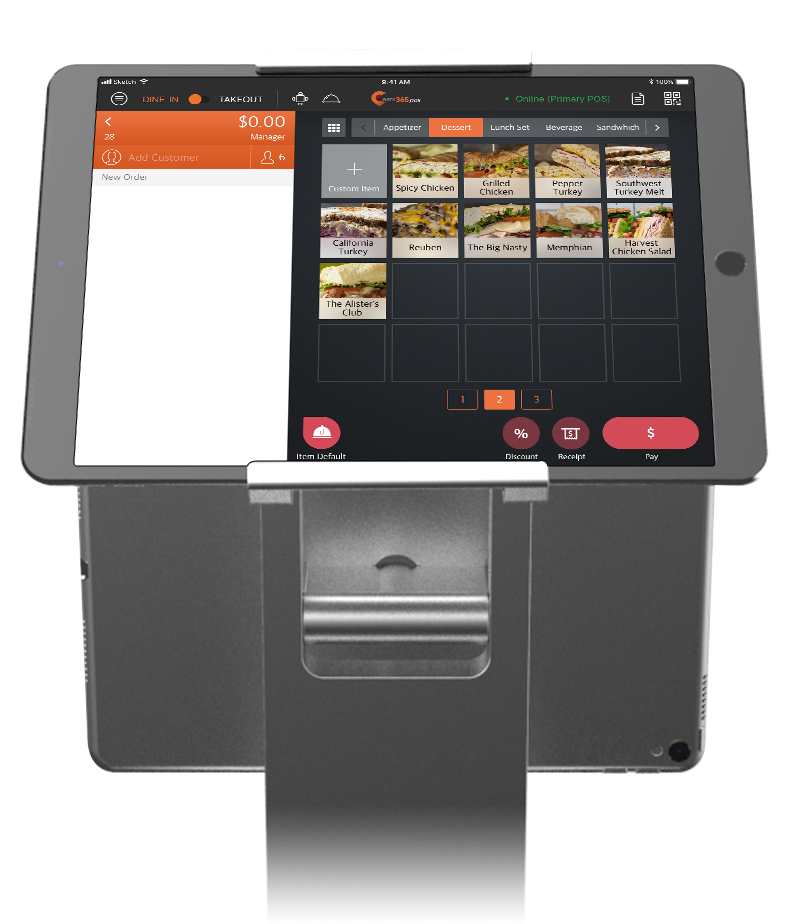
mPOS is Perfect for these Restaurant Types


mPOS is Part of the Following Solutions


Restaurants Like Yours Love the mPOS
FAQs about Eats365 mPOS
1. What is an mPOS and how does it work in a restaurant?
An mPOS (mobile Point of Sale) is a portable handheld device that combines the full functionality of a traditional POS with the mobility of a smartphone or tablet. In a restaurant, it allows staff to take orders directly at the table and send them instantly to the kitchen, eliminating the need to walk back and forth to a stationary terminal.
2. Can I use any mobile device as an mPOS with Eats365?
The Eats365 mPOS solution is designed to work on compatible Android devices. By installing the mPOS app on a handheld Android terminal or smartphone, your staff can manage tables, enter orders, and confirm customer requests from anywhere on the restaurant floor.
3. How does mPOS improve restaurant service efficiency?
mPOS improves efficiency by reducing the time staff spend running between the dining area and stationary POS terminals. It minimizes order errors by allowing servers to punch in items at tableside and increases table turnover by streamlining the communication flow between the front-of-house and the kitchen.
4. Does the Eats365 mPOS support tableside ordering and editing?
Yes, the mPOS allows waitstaff to enter orders directly at the tableside, as well as review, edit, and confirm orders placed by customers. This real-time synchronization ensures that the kitchen always has the most up-to-date information for every table.
4. Can I process payments directly through the mPOS device?
Yes, when used with compatible handheld hardware, the mPOS functions as a complete mobile workstation that can handle order entry and payment processing. This allows guests to settle their bills at the table, providing a faster and more convenient checkout experience.
5. How do I set up a new mPOS device with my existing system?
To set up a new mPOS, you need to download the app onto a compatible Android device and log in using your Merchant ID. Once logged in, you can configure device-specific preferences, such as default order view modes and auto sign-out settings, through the system's general preferences menu.
Learn More about How an mPOS Can Help with Faster Tableside Ordering
What Does EFTPOS Stand For in New Zealand
 22 May 2025

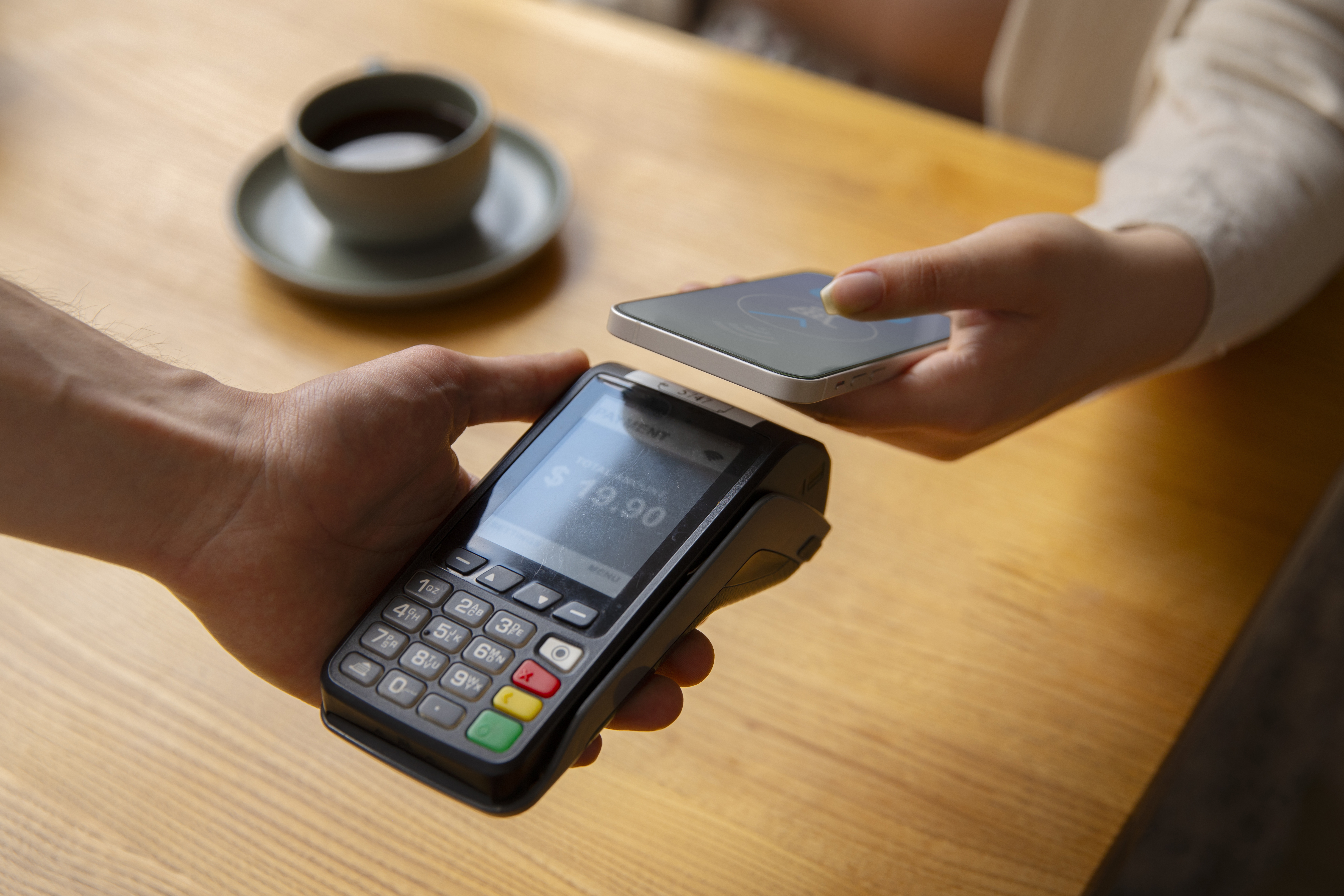
Ever found yourself in a Kiwi café wondering 'what does EFTPOS stand for?' You're not alone! This guide decodes the EFTPOS meaning for New Zealand restaurants, simplifying this everyday acronym.
Restaurant management
Payment tool
Read More

How to Start a Food Business in New Zealand: A Step-by-Step Guide
15 May 2025
Keen to launch your food dream in Aotearoa? Successfully learning how to start a food business means first navigating New Zealand’s crucial food safety regulations.
Rules & Regulations
F&B Entrepreneurship
Permit & License
Read More
Maximising Your Restaurant Kitchen: An Australian Guide to Efficiency & Profit
11 Apr 2025
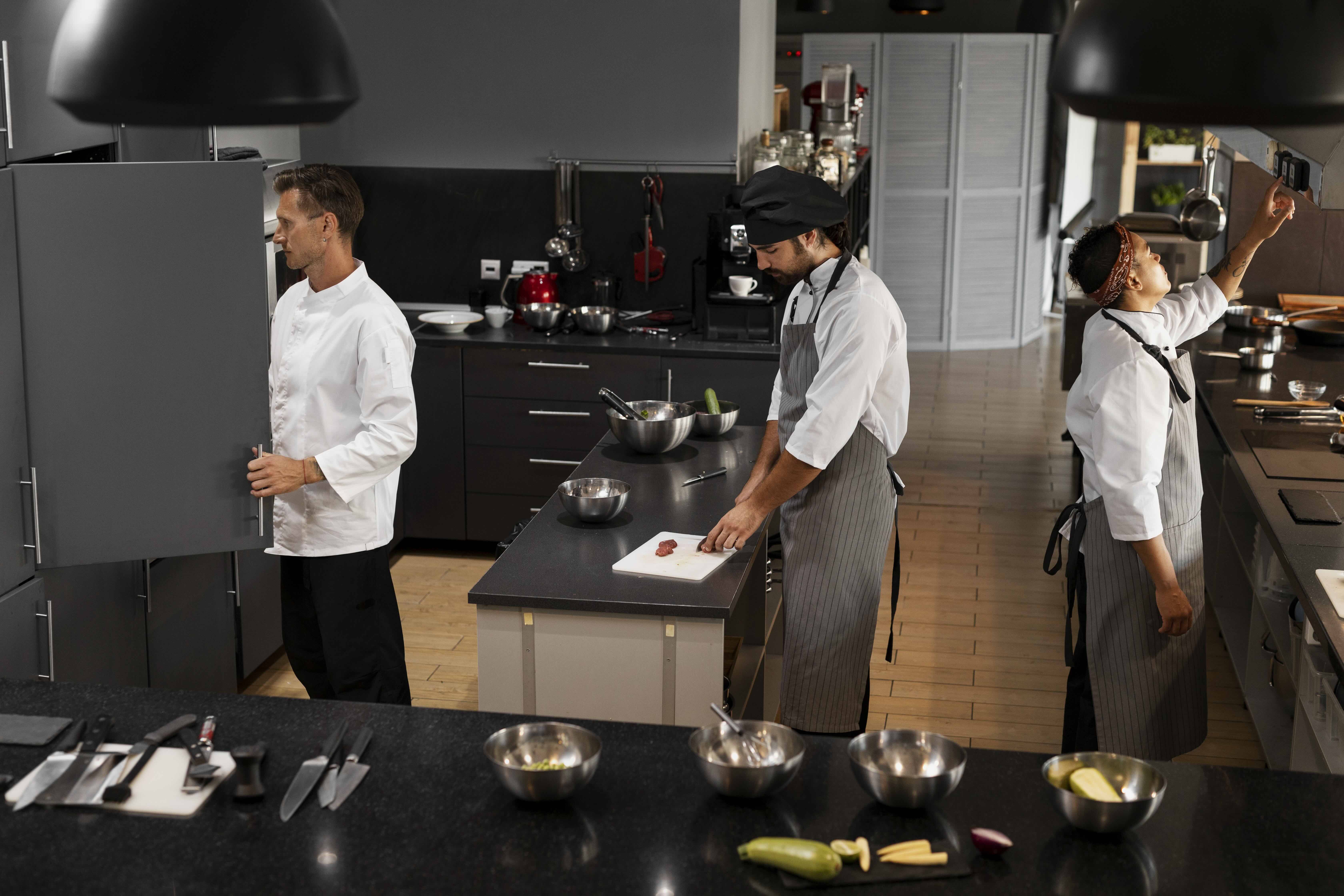
Is your biggest kitchen bottleneck the prep area, the pass, or a breakdown in communication between front and back of house? Identifying the biggest obstacle is the first, and often most impactful, step toward a more profitable and stress-free kitchen!
Kitchen management
Restaurant POS System
Read More